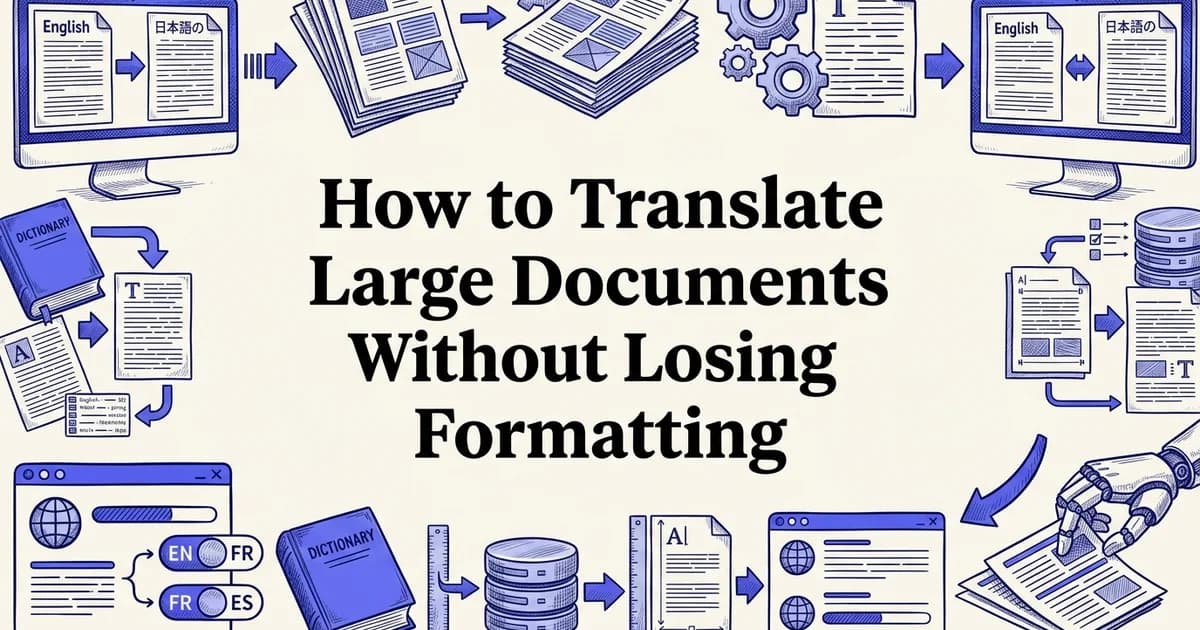
How to Translate Large Documents Without Losing Formatting
- Access to a document translation tool or platform
- A large document ready for translation (DOCX, PDF, or text format)
- Basic understanding of file formats and document structure
Introduction: Why translating large documents requires a strategic approach
Translating large documents is fundamentally different from translating a short email or a paragraph of text. When you're working with lengthy reports, legal contracts, technical manuals, or full-length books, the stakes are higher and the failure points multiply quickly. Getting this right requires more than just a translation tool. It requires a deliberate workflow.
At DocuGlot, our analysis shows that formatting loss is the single most common complaint among professionals who attempt to translate large documents using standard methods. Headers collapse, tables break apart, fonts revert to defaults, and carefully structured layouts become unreadable walls of text. The translated content may be linguistically accurate, yet completely unusable in practice.
Standard translation approaches, including basic machine translation tools and copy-paste methods, were simply not designed with large, formatted documents in mind. They handle raw text reasonably well, but strip away the structural elements that make a document functional. For a 50-page business report or a 300-page manuscript, that kind of formatting loss can mean hours of manual reformatting work after the fact.
The good news is that modern AI translation tools have advanced significantly, with layout preservation now a core priority rather than an afterthought. A proper workflow addresses three things simultaneously: translation accuracy, formatting integrity, and time efficiency.
This guide walks you through exactly how to translate large documents without losing formatting, covering the tools, steps, and decisions that separate a clean result from a frustrating one. Here is what to expect:
- Formatting will be preserved when you use the right file formats and tools
- Quality scales with preparation, not just with document length
- The process is repeatable, making future translations faster and more consistent
What you'll need: Prerequisites and tools for success
Before you begin, gathering the right tools and materials will save you significant time and prevent formatting headaches mid-process. The core requirements are a compatible file format, a translation tool built for document structure, and any reference materials that define your terminology.
File format: Convert your document to DOCX before starting. This format preserves headers, footers, tables, fonts, and lists more reliably than PDF or plain text exports. If your document is in another format, restructure it now rather than after translation.
A translation tool with format preservation: Not all translation tools handle large, structured documents equally. For business documents, reports, and long-form content, you need a tool that reads document structure rather than stripping it. DocuGlot is built specifically for this, supporting DOCX, TXT, and Markdown files with full formatting retained on output. You can review how it compares to other options in this expert review of AI translation services.
Reference materials to prepare:
- A glossary of key terms, product names, or technical vocabulary
- A style guide if your organization has tone or terminology standards
- A clean, proofread source document (errors in the original will carry through)
With these in place, you are ready to move into document preparation.
Step 1: Prepare and format your document for translation
Before you upload anything, invest a few minutes in cleaning up your source file. A well-prepared document translates faster, produces cleaner output, and dramatically reduces the risk of broken layouts on the other side. This step is especially important when you translate large documents, where small structural issues can compound across hundreds of pages.
Audit your source document
Open your document and scan for inconsistent formatting, hidden comments, tracked changes, or embedded objects. These elements can cause translation errors or produce messy output. Use Find & Replace to standardize spacing and remove unnecessary line breaks.
Clean up text and remove unnecessary elements
Delete placeholder text, remove extra blank pages, and consolidate fragmented paragraphs. If your document contains images with embedded text, note these separately as they'll need manual translation. Ensure all fonts are standard and embedded properly.
Verify structural elements
Check that headers, footers, page numbers, and table of contents are properly formatted. Confirm all tables have clear headers and consistent cell formatting. Test that any hyperlinks or cross-references are functional before uploading.
Save in your chosen format
Export your cleaned document in the format you've selected (DOCX, PDF, or PPTX). Avoid saving in older formats like DOC or RTF, as these may lose formatting during translation. Create a backup of your original file before proceeding.
Create a backup first. Save a copy of your original file in a separate folder before making any changes. Label it clearly with the date and "original" so there is no confusion later.
Clean up your document structure:
- Remove duplicate or conflicting styles (for example, manually bolded text that also has a "Heading 2" style applied)
- Delete unused blank pages, redundant line breaks, and leftover comments or tracked changes
- Standardize heading levels so the hierarchy is logical: H1 for titles, H2 for major sections, H3 for subsections
- Replace any decorative special characters that may not survive format conversion
Check embedded elements carefully. Open your document and scroll through every page looking for:
- Tables with merged cells, which can misalign during processing
- Images with text overlays (that text will not be translated automatically)
- Footnotes, endnotes, and headers or footers containing critical content
Verify your file format. DocuGlot Basic supports DOCX, TXT, and Markdown files. If your document is currently a PDF, an older DOC file, or an InDesign export, convert it to DOCX first using your word processor. This single step prevents the majority of upload errors users encounter.
Estimate your word count. Use your word processor's built-in counter. DocuGlot Basic handles up to approximately 100,000 words, which covers most business reports, manuals, and long-form content comfortably. If your document exceeds that range, consider whether splitting it into logical sections makes sense before proceeding.
Once your file is clean, backed up, and confirmed compatible, you are ready to choose your translation method.
Step 2: Choose the right file format and translation method
Selecting the correct file format before you upload is one of the most consequential decisions in the process. The format you choose directly determines how much of your original structure survives translation, and for large documents with complex layouts, the difference between formats can mean hours of reformatting work afterward.
Compare your format options before committing:
- DOCX is the strongest choice for most users. Because it stores formatting as structured data rather than a flat image, translation engines can read and reconstruct headers, footers, tables, font styles, and list hierarchies accurately. DocuGlot Basic natively supports DOCX and preserves all of these elements on output.
- PDF presents a significant risk. Scanned or print-optimized PDFs flatten your content into an image layer, stripping the structural data that keeps formatting intact. If your source document is a PDF, convert it to DOCX first using your word processor or a dedicated converter before uploading.
- Plain text and Markdown are reliable for content that has minimal formatting requirements. DocuGlot Basic supports both, making them practical choices for scripts, transcripts, or developer documentation where visual layout is secondary.
Decide between single-file and batch translation. If you are working with one large document, upload it as a single file. If you split your document into sections during Step 1, use a batch workflow to keep the translation consistent across all parts. Research suggests that maintaining consistent terminology across batched files is easier when all segments are processed through the same platform in a single session.
Match your tier to your document's complexity. DocuGlot Basic handles straightforward business documents, reports, and manuals efficiently. For highly technical content, legal text, or documents requiring greater linguistic precision, DocuGlot Premium applies a more advanced model suited to that complexity. You can review a broader breakdown of format and tier considerations in this guide to enterprise document translation solutions.
With your format confirmed and your translation tier selected, you are ready to move into the upload and configuration stage.
Step 3: Upload and configure your translation settings
Once your file is prepared and your tier is selected, configuring your settings correctly is what separates a clean, consistent translation from one that requires hours of manual correction. Take time here. A few minutes of setup protects the integrity of your entire document.
Select your source and target languages
Choose the language your document is currently written in and the language you want it translated to. DocuGlot supports 100+ language pairs. Double-check both selections to avoid translating in the wrong direction.
Choose your translation tier
Select between DocuGlot Basic (cost-effective, faster processing for simpler documents) or DocuGlot Pro (higher accuracy for complex, technical, or legally sensitive content). Consider your document's complexity and deadline when deciding.
Configure formatting preservation options
Enable options to preserve headers, footers, page numbers, tables, and original fonts. If your document contains branded elements or specific styling requirements, ensure these preservation settings are activated before uploading.
Set quality and review preferences
Enable the Quality Summary feature to flag lower-confidence segments for manual review. Choose whether to receive email notifications upon completion. Set any custom glossary terms if you have industry-specific vocabulary that must be translated consistently.
Select your source and target languages
In DocuGlot, open the translation panel and choose your source language from the dropdown menu. If you are unsure of the source language, use the auto-detect option. Then select your target language from the 100+ available options. For documents being translated into multiple languages, note each target separately and run them as individual jobs to maintain output quality.
Set up glossaries and terminology databases
This step is critical for business documents, branded content, and technical manuals. DocuGlot allows you to upload a custom glossary before processing begins. Add product names, industry terms, and brand-specific phrases that must remain consistent throughout. Research suggests that glossary control is one of the most requested features among teams translating large documents at scale, particularly where branded language cannot be approximated.
Configure formatting preservation options
DocuGlot applies full format preservation by default, covering headers, footers, tables, lists, fonts, and colors. Confirm these settings are active before proceeding. For documents with complex nested tables or multi-column layouts, this confirmation step is especially important. You should see a formatting summary displayed before upload completes.
Choose quality assurance settings
Enable post-editing flags if you want DocuGlot to highlight low-confidence segments for human review. This is particularly useful for legal or technical content. For a deeper look at balancing speed and accuracy, see this guide to translating documents instantly without quality loss.
Verify your file integrity indicator shows green before advancing to the next step.
Step 4: Execute the translation and monitor progress
Click the Translate Now button to initiate processing. DocuGlot immediately queues your document and displays a real-time progress bar showing percentage completion, estimated time remaining, and current processing stage. For most large documents, this dashboard gives you enough visibility to plan your review workflow in advance.

Watch the Stage Indicators panel as your document moves through three distinct phases: structure analysis, content translation, and formatting reconstruction. DocuGlot Basic uses a fast AI model optimized for speed without sacrificing layout integrity, so headers, tables, footnotes, and font styling are rebuilt automatically during the final phase rather than stripped and reapplied afterward.
For complex content such as nested tables or multi-column layouts, processing may take slightly longer. This is normal. The AI is mapping each element individually to ensure positional accuracy in the output file.
Monitor these signals during processing:
- A green Format Lock indicator confirms your layout is being preserved in real time
- A yellow flag on any segment signals a low-confidence translation queued for post-editing review
- An estimated word count tracker confirms the full document is being processed, not truncated
Avoid closing the browser tab during active processing. If you need to step away, DocuGlot saves your job to your account dashboard automatically.
Once the progress bar reaches 100%, your translated DOCX file becomes available for download. Before opening it, note any flagged segments listed in the Quality Summary panel. These will be your starting point in the next step.
Step 5: Review, edit, and finalize your translated document
Open your downloaded DOCX file and work through the Quality Summary flags first. These highlighted segments represent areas where the AI detected lower confidence, making them your highest-priority edits before anything else.
Review Quality Summary flags
Open the Quality Summary report that DocuGlot generates. These flagged segments represent areas where the AI detected lower confidence. Prioritize reviewing these sections first, as they're most likely to need manual correction or refinement.
Perform a full read-through
Read the entire translated document from start to finish, checking for consistency in terminology, tone, and style. Pay special attention to headers, footers, and any branded language that should maintain specific phrasing in the target language.
Make targeted edits
Use DocuGlot's built-in editor to make corrections directly in the translated document. Focus on clarity, cultural appropriateness, and technical accuracy. Avoid wholesale rewrites; instead, refine specific phrases and segments.
Export and validate final output
Download your finalized DOCX file and open it in your native application to verify all formatting has been preserved. Check page breaks, table layouts, and image placement. Once validated, your document is ready for distribution or publication.
Check formatting integrity throughout the document:
- Scroll through every page and confirm headers, footers, and page breaks appear exactly as they did in the source file
- Verify that tables, numbered lists, and font styling have carried over correctly
- Pay close attention to the first and last pages, where formatting issues most commonly surface
Conduct a terminology consistency review:
Compare key terms against the glossary you prepared before translation. Search for each critical term using your word processor's Find function and confirm it appears consistently. Inconsistent terminology is one of the most common quality issues in translated large documents, and catching it now prevents confusion for your readers.
Make targeted edits rather than full rewrites. If a sentence reads awkwardly, adjust phrasing while preserving the translated meaning. Avoid restructuring entire paragraphs unless the meaning is genuinely unclear.
Once edits are complete, run a final read-through at normal reading pace. This catches issues that line-by-line review tends to miss, particularly tone and flow.
Export your finished document in your required format. DocuGlot delivers output as DOCX by default, which you can then convert to PDF or any other format using your existing tools.
Common mistakes to avoid when translating large documents
Even with a solid workflow in place, a few recurring errors can derail your translation project. Knowing these pitfalls in advance saves significant time and rework when you translate large documents.
Get started with DocuGlot Basic for translate large documents DocuGlot Basic.
Skipping document preparation. Uploading a messy, inconsistently formatted file produces messy, inconsistently formatted output. Clean your source document before you upload it, not after.
Using flattened PDFs when a structured format exists. If your original document is a Word file, always translate from that source. Flattened PDFs strip structural data, making accurate format reconstruction far harder.
Ignoring file-size limits. Many tools impose upload caps that trigger silent failures or incomplete translations. In our experience at DocuGlot, splitting oversized files into logical batches, by chapter or section, produces more reliable results than forcing a single massive upload.
Choosing the wrong tool tier. Using a basic plan on a complex, heavily formatted document risks losing tables, headers, and font styling. Match the tool to the document's complexity before you start.
Skipping glossary setup. Without a defined glossary, the same technical term can appear translated three different ways across a long document. Inconsistent terminology is one of the most common accuracy complaints in machine-translated large documents, and it is entirely preventable.
Why this method works: Understanding the translation workflow
Each step in this workflow exists for a specific reason, and understanding the logic behind it helps you apply it confidently to any document you encounter.
Structured preparation, including file auditing and format checks, prevents the cascading errors that occur when a translation tool encounters unexpected elements mid-process. Fixing a broken table structure before translation is far simpler than reconstructing it afterward.
The format-first approach reflects a broader shift in how AI translation is being applied professionally. Current best practices emphasize layout preservation as a baseline requirement, not an afterthought. Tools like DocuGlot are built around this principle, preserving headers, footers, tables, fonts, and colors as part of the core translation process rather than treating them as secondary concerns.
Glossary integration keeps your brand voice and technical terminology consistent across every page, solving one of the most persistent quality problems in large document translation.
Finally, tiered tool selection ensures your document's complexity is matched to the right processing capability, while post-editing catches the subtle nuances that even strong AI models occasionally miss.
Alternative methods for translating large documents
Not every project fits a single workflow. Depending on your document type, team size, and quality requirements, several alternative approaches can help you translate large documents effectively while keeping formatting intact.
Splitting documents into chapters or sections is the simplest alternative. Break a 200-page report into logical chunks, translate each batch separately, then reassemble. This works well for linear documents but requires careful version control to avoid inconsistencies between sections.

For EPUB files and structured publishing content, BookTranslator handles the specific formatting demands of digital books, preserving chapter hierarchies, metadata, and embedded styles that general-purpose tools sometimes flatten.
CAT tools (computer-assisted translation software) give professional translators maximum control, letting them work segment by segment with translation memories and terminology databases. The tradeoff is speed and cost.
Hybrid approaches are increasingly popular: run your document through an AI translation tool like DocuGlot Premium first, then route the output to a human reviewer for post-editing. This combines speed with precision.
For teams working across multiple languages simultaneously, cloud-based collaborative platforms allow several translators to work on different sections in parallel, significantly compressing turnaround times on large multilingual projects.
Real-world example: Translating a 50-page business manual
To make this concrete, here is how a hybrid workflow plays out when translating a 50-page operations manual from English to Spanish. The document includes branded headers, footers with page numbers, technical terminology, and a mix of tables and bulleted procedures.
Step 1: Upload and configure in DocuGlot Premium
Upload the DOCX file directly. DocuGlot Premium detects the document structure automatically, preserving headers, footers, fonts, and table layouts. Select Spanish as the target language and enable the custom glossary feature to lock in approved translations for product names and technical terms before processing begins.
What you should see: A formatting preview confirming all structural elements are intact before translation starts.
Step 2: Run the translation
Processing a 50-page manual typically takes a few minutes with DocuGlot's fast AI model. The output arrives as a fully formatted DOCX, with page numbers, brand colors, and table alignment matching the original.
Step 3: Post-edit for quality assurance
Route the translated file to a bilingual reviewer who checks terminology consistency and reads for natural flow. Studies indicate this post-editing stage typically adds one to two hours for a document this size, compared to days for full human translation from scratch.
Outcome: The hybrid approach delivers a polished, formatted Spanish manual at roughly a fraction of traditional agency costs, with a turnaround measured in hours rather than weeks.
Time and cost breakdown for large document translation
Planning your budget and timeline upfront prevents surprises. Use the estimates below as a starting framework, then adjust based on your document's complexity and language pair.
Processing time by document size:
- Up to 10,000 words: typically under 5 minutes with a fast AI model
- 10,000 to 50,000 words: roughly 10 to 20 minutes
- 50,000 to 100,000 words: up to 45 minutes, depending on formatting complexity
Cost comparison:
- DocuGlot Basic covers up to approximately 100,000 words with full format preservation, making it cost-effective for standard business documents like reports, manuals, and guides
- DocuGlot Premium suits complex files with dense tables, embedded images, or specialized terminology requiring a more advanced AI model
- Traditional agency translation can run significantly higher per word, with turnaround times measured in days or weeks
Budget planning tips:
- Add one to two hours of post-editing time per language, regardless of document length
- For multilingual campaigns, translate once and batch additional languages through DocuGlot to reduce per-language costs
- Calculate ROI by comparing agency quotes against your total DocuGlot spend at docuglot.com/translate?plan=basic
Conclusion: Start translating your large documents with confidence
Translating large documents successfully comes down to three fundamentals: prepare your source file carefully, choose a tool built for format preservation, and review the output with fresh eyes. Follow these steps consistently and you will protect both your content and your layout across every language.
The workflow covered in this guide applies whether you are handling a single contract or a multilingual content campaign. Proper preparation saves time. The right tool, like DocuGlot, eliminates the formatting headaches that derail manual approaches. And a structured review process catches the small errors that automated tools occasionally miss.
If you are ready to put this into practice, start with DocuGlot Basic at docuglot.com/translate?plan=basic to handle your first document. For larger volumes or more complex files, explore DocuGlot Premium and BookTranslator to unlock the full range of multilingual capabilities available to you.
Frequently asked questions
How do I translate a large document without losing formatting?
Use a dedicated document translation tool like DocuGlot, which preserves headers, footers, tables, fonts, and colors automatically. Avoid copying text into general-purpose AI chatbots, as this strips all formatting before translation begins.
Can ChatGPT translate large documents?
ChatGPT can handle short passages but has strict token limits and no native file processing for large documents. It also discards formatting entirely, making it unsuitable for professional or structured documents.
What is the best file format for translating large documents?
DOCX is the most reliable format because it stores formatting data that translation tools can read and reconstruct. DocuGlot Basic supports DOCX, TXT, and Markdown files with full format preservation.
Is machine translation accurate for large documents?
Modern AI translation is highly accurate for most business and general content, though technical or highly specialized terminology benefits from a glossary review afterward.
How do I split a large document for translation?
Most quality tools handle large files natively, so splitting is rarely necessary. DocuGlot Basic supports up to approximately 100,000 words per document without requiring manual splitting.
Based on our work at DocuGlot, the most common issues users face when they translate large documents, including formatting loss and terminology drift, are solved by choosing the right tool from the start rather than trying to fix problems after the fact.
More from Our Blog
Integrating AI Shopping Platforms: A Practical Approach for E-commerce
Learn how to integrate AI shopping platforms into your e-commerce store. Step-by-step guide covering setup, optimization, and troubleshooting for SMBs.
Read more →
Kā savienot dažādas biznesa sistēmas bez sarežģījumiem
Uzziniet, kā ieviest sistēmu integrācijas pakalpojumus starp ERP, CRM un e-komercijas platformām. Detalizēta soli pa solim pamācība ar praktiskiem piemēriem.
Read more →
Kā izvēlēties bērna vārdu: Ekspertu padomi lēmuma pieņemšanai
Praktiski padomi bērna vārda izvēlei: kā vienoties pārim, pārbaudīt vārda piemērotību un izvairīties no kļūdām.
Read more →