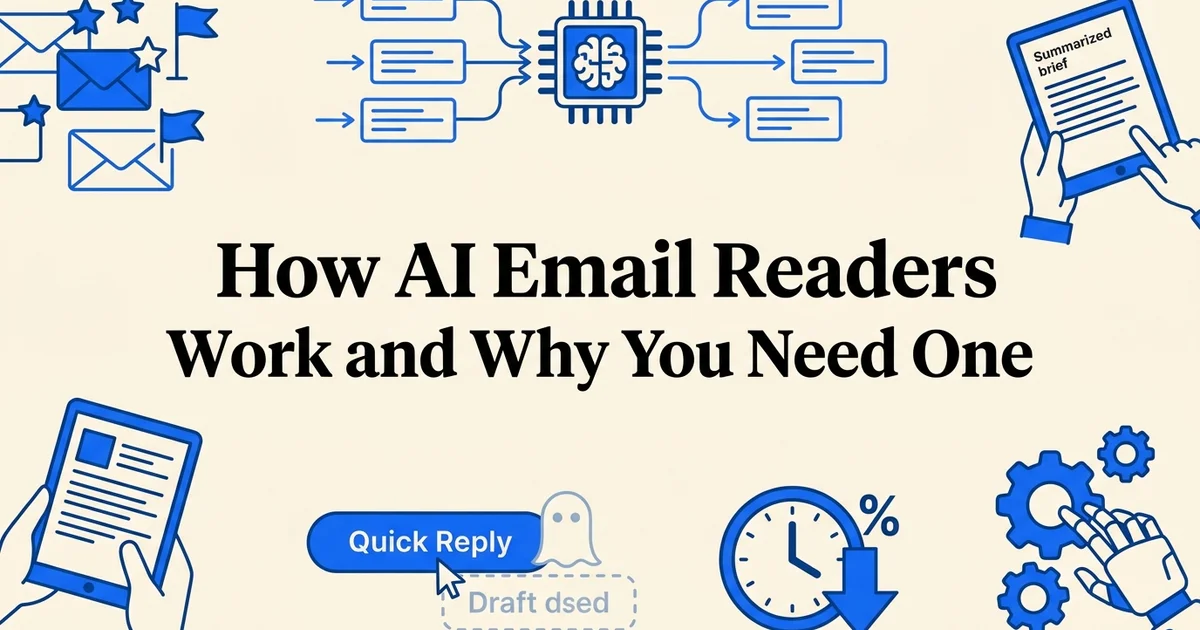
How AI Email Readers Work and Why You Need One
- Active Gmail or Outlook email account
- Basic familiarity with email folders and labels
- Willingness to grant secure app permissions to your inbox
Introduction: why AI email readers are changing how professionals manage inboxes
If your inbox feels like a second job, you are not imagining it. Research suggests knowledge workers now spend over 28% of their workweek reading and responding to email, a figure that leaves less time for the focused, high-value work that actually moves careers and businesses forward. An AI email reader, a tool that uses artificial intelligence to summarize, prioritize, and help you act on messages faster, is rapidly becoming the solution professionals reach for first.
The numbers behind this shift are hard to ignore. According to the Microsoft Work Trend Index (2024), AI-augmented email workflows that include summaries, suggested replies, and smart prioritization can reduce time spent on email by 25 to 35 percent. Studies also indicate that productivity on email and communications tasks can increase by roughly 29 percent when AI assistance is introduced into the workflow.
At VoiceMyMail, our analysis shows that one of the most underused strategies is simply consuming email differently. Converting your inbox to audio, for example, lets you process messages during commutes, walks, or any hands-free moment, turning dead time into productive time without adding a single extra hour to your day.
This guide walks you through everything you need to get started:
- Choosing the right AI email reader for your specific workflow
- Setting up prioritization, summaries, and reply drafting safely
- Avoiding the common mistakes that undermine time savings
- Optimizing your setup over the first week to see measurable results
By the end, you will have a clear, repeatable system for managing your inbox in a fraction of the time it takes today.
What you'll need before getting started
Before diving into the setup steps, take two minutes to confirm you have everything in place. Getting these basics right upfront means your AI email reader will be configured correctly from day one, with no backtracking required.
Here is what you need:
- A compatible email account. Gmail and Outlook cover the vast majority of AI email reader integrations. Most tools also support Yahoo Mail, Apple Mail, and IMAP-based accounts. Know which provider you use before you begin.
- A basic grasp of your inbox structure. Understand how your folders, labels, or categories are currently organized. Even a rough mental map helps you configure filtering and prioritization rules more accurately in later steps.
- Willingness to grant app permissions. Every AI email reader requires secure access to your inbox via OAuth (a permission standard that lets apps connect without storing your password). Privacy and security vary significantly between tools, so this is one of the most important factors when choosing which one to use.
- 5 to 10 minutes for initial setup. The configuration process is straightforward. Most users are fully operational within a single session.
- A shortlisted tool that fits your workflow. If you primarily consume newsletters and long email threads, an audio-first option like VoiceMyMail converts your inbox to speech, making it ideal for busy professionals who prefer listening over reading. If drafting and triage are your priority, a text-based assistant may suit you better.
With these five elements confirmed, you are ready to move into the step-by-step setup process.
Step 1: choose the right AI email reader for your needs
Start by matching the tool to your specific role, email volume, and daily habits before you create a single account. The right AI email reader eliminates friction rather than adding it, so spending 20 minutes on this decision upfront saves hours of reconfiguration later.
Assess your email volume and role
Determine how many emails you receive daily and what type of work you do. Sales managers, support teams, and founders typically receive 100+ emails per day and benefit most from AI readers. Knowledge workers with moderate volume (20–50 emails daily) may prioritize different features like smart filtering over aggressive summarization.
List your must-have features
Write down the three features that would save you the most time: summarization, prioritization, reply drafting, calendar integration, or something else. This prevents feature creep and helps you evaluate tools against your actual needs rather than marketing claims.
Compare tools on security and integration
Verify that your shortlisted tools use OAuth authentication (which keeps your password safe) and integrate with your email provider. Check whether the tool supports your email platform—Gmail, Outlook, Apple Mail, or others—before committing.
Start with a free trial or freemium plan
Use the tool's trial period to test it against your actual inbox for 3–5 days. Real-world testing reveals whether the tool's behavior matches your workflow better than reading reviews or feature lists ever could.
Assess your primary use case first
Different roles have fundamentally different needs:
- High-volume roles (sales, support, recruiting): Prioritize tools with strong triage, thread summarization, and reply drafting. Research suggests these roles can cut inbox processing time by up to 50% once the right tool is fully adopted.
- Executives and managers: Look for digest delivery, smart prioritization, and calendar integration that surfaces only what requires a decision.
- Commuters and multitaskers: If you process email while driving, exercising, or moving between meetings, a voice-first tool is non-negotiable. VoiceMyMail converts your inbox and newsletters to spoken audio, letting you consume and triage email entirely hands-free. You can explore the underlying approach in more detail in this guide on how to use free text to speech for your emails.
Check compatibility and integration depth
Confirm the tool connects natively to your email provider, whether that is Gmail, Outlook, Apple Mail, or another platform. Shallow integrations that only read subject lines miss thread context and produce unreliable summaries. Look for tools that request only the permissions they genuinely need.
Evaluate privacy and data handling
Read the privacy policy before authorizing any access. Key questions to answer:
- Is your email content used to train third-party models?
- Where is data stored, and for how long?
- Does the tool offer OAuth (a secure, token-based authorization method) rather than storing your password directly?
Compare core features side by side
| Feature | Why it matters |
|---|---|
| Summarization | Condenses long threads into key points |
| Prioritization | Surfaces urgent messages automatically |
| Reply drafting | Reduces composition time |
| Audio playback | Enables hands-free consumption |
| Automation | Handles routing, labeling, and follow-ups |
What you should see at this stage: a single tool selected that covers your top two or three requirements without requiring you to compromise on privacy or compatibility. Write down the specific features you expect to use daily. That list becomes your benchmark when you configure settings in the steps ahead.
Step 2: securely connect your email account to the AI reader
Connect your chosen AI email reader to your inbox using OAuth authentication, a secure authorization method that lets the tool access your email without ever seeing your password. This approach keeps your credentials protected while giving the tool only the specific permissions it actually needs to function.
Initiate the OAuth connection flow
Open your chosen AI email reader and select 'Connect Email Account' or similar. You will be redirected to your email provider's login page. This separation ensures the AI tool never sees your password—only your email provider does.
Grant the minimum required permissions
Review the permission request carefully. A legitimate AI email reader needs read access to your inbox and sent items, and possibly calendar access for scheduling features. Deny any request for write access to sent items or the ability to delete emails unless you explicitly want that feature.
Verify the connection in your email provider's settings
Log into your email account's security or connected apps settings. Confirm that the AI email reader appears in your list of authorized applications. This gives you a second checkpoint and makes it easy to revoke access later if needed.
Test with a single email action
Send the AI reader a test email or ask it to summarize a recent thread. A successful test confirms the connection is live and the tool can read your inbox. If nothing happens, check your spam folder or reconnect.
Use OAuth, not your password
OAuth (Open Authorization) works by generating a temporary access token between your email provider and the AI tool. When you click "Connect with Google" or "Connect with Microsoft," you are redirected to your email provider's own login page, not a third-party form. Your password never leaves that page.
What you should see: a permissions consent screen from Google, Microsoft, or your provider listing exactly what the tool is requesting access to. Read this screen carefully before clicking "Allow."
Grant only the permissions you need
Most AI email readers request broad access by default. Narrow this down wherever possible:
- Read emails: almost always required
- Send emails on your behalf: only grant this if you are using AI reply drafting
- Access all folders: consider restricting to specific labels or folders first
- Manage contacts or calendar: decline unless the feature is central to your workflow
If you are using VoiceMyMail to convert your inbox to audio, the tool needs read access to retrieve and process messages for playback. It does not require send permissions, which keeps your account exposure minimal.
Confirm where your data is processed
Before completing the connection, check the tool's privacy documentation to confirm whether email content is processed on-device, in the cloud, or within a specific geographic region. This matters for compliance if you handle sensitive or regulated information.
Test with a small batch first
Once connected, limit the initial sync to a single folder or the last 20 messages rather than your full inbox. Verify that emails appear correctly and that no unintended actions, such as auto-labeling or deletions, have occurred.
What you should see: a small set of emails displayed accurately within the tool, with no changes made to your original inbox. Once confirmed, you can safely expand access to your full account.
Step 3: configure your AI reader settings and preferences
With your account connected, the next move is to shape how your AI email reader behaves day to day. Spend 10 to 15 minutes here. Thoughtful configuration is what separates a tool that genuinely saves time from one that adds noise to your workflow.
Choose which folders to monitor
Start by selecting the email folders or labels the AI should watch. Most users benefit from limiting initial monitoring to their primary inbox and one or two priority labels rather than every folder. This keeps AI-assisted triage focused and prevents irrelevant messages from diluting the signal.
In VoiceMyMail, navigate to Source Settings and select the specific inboxes or newsletter categories you want converted to audio. Keeping this list tight at first gives you cleaner, more useful digests.
Set your summarization style
Decide how you want information delivered:
- Bullet-point summaries: fast, scannable, ideal for high-volume inboxes
- Full thread context: better for complex conversations requiring nuance
- Voice digest: converts summaries to spoken audio, which suits commuters or anyone managing email hands-free
VoiceMyMail's core strength is this last format. Its text-to-speech email reader converts your inbox into natural-sounding audio using AI voices, with multi-language support for international teams.
Define priority triggers
Specify which senders, subject-line keywords, or domains should trigger immediate alerts. Common choices include your manager's name, client domains, and words like "urgent" or "contract."
Configure auto-reply drafting carefully
Enable AI-assisted reply drafting only for low-stakes message types at first. As one principle in human-in-the-loop email workflows puts it: let the AI handle the grunt work, but reserve the human touch for nuance, empathy, and final edits.
Set your digest frequency
Choose from real-time alerts, hourly, daily, or weekly summaries depending on your role. Sales and support professionals often benefit from hourly digests, while deep-focus roles may prefer a single morning summary.
What you should see: a personalized dashboard or audio feed reflecting only the emails and categories you selected, delivered at the cadence you chose.
Step 4: set up prioritization rules and smart filtering
Prioritization rules tell your AI email reader which messages deserve your attention first and which can wait. Configure these rules correctly and your inbox transforms from a flat, chronological list into a ranked, actionable queue where the most important emails surface automatically.
Define your priority tiers
Create three to five priority levels: critical (requires immediate action), important (should be reviewed today), standard (can wait), and low (newsletters, notifications). Assign each tier a visual indicator—color, icon, or label—so your inbox becomes scannable at a glance.
Set rules based on sender and keywords
Mark emails from your manager, key clients, or direct reports as critical. Flag emails containing keywords like 'urgent,' 'deadline,' or your name as important. Use negative rules too: automatically deprioritize newsletters, automated alerts, or internal announcements unless they contain specific keywords.
Create filters for low-priority categories
Route marketing emails, notifications, and digests into separate folders or labels. This removes visual clutter from your main inbox without deleting anything. You can review these batches once daily or weekly rather than letting them interrupt your focus.
Test rules on your current inbox
Apply your new rules to the last 50–100 emails in your inbox. Review the results: did critical emails get flagged correctly? Did any important messages get deprioritized by mistake? Refine rules based on what you see before activating them for new incoming mail.
Create contact-based priority flags
Start by flagging emails from your highest-value contacts. Most AI email readers let you build a VIP list that includes:
- Clients and prospects whose emails require a same-day response
- Managers and executives whose requests carry urgency by default
- Team leads and direct reports whose blockers affect project timelines
Add these contacts manually first. Your AI reader will then learn from how quickly you open and reply to their messages, reinforcing the priority ranking over time through pattern recognition.
Let the AI learn your communication patterns
Beyond manual rules, enable your reader's intent and urgency detection. This feature analyzes subject lines, keywords, and sender history to auto-rank incoming messages. Emails containing phrases like "urgent," "deadline," or "action required" get elevated automatically, while newsletters and promotional messages are separated into a lower-priority layer.
AI-driven recipient validation, a feature that cross-references your past communication patterns, also reduces the risk of misdirected emails reaching the wrong thread or folder. According to Hornetsecurity, misdirected emails represent one of email's most persistent and costly problems, and AI pattern learning significantly reduces their occurrence.
Separate noise from signal
Create distinct labels or folders for:
- Transactional emails: receipts, confirmations, shipping updates
- Newsletters: marketing content and editorial digests you subscribe to
- Promotional messages: sales offers and announcements
- Actionable messages: anything requiring a reply, decision, or task
Test before you trust
Run your prioritization rules against 50 to 100 existing emails before relying on them fully. Review what the AI flagged as urgent versus what you actually needed to act on. Note the gaps.
What you should see: at least 80 to 90 percent of your genuinely urgent emails appearing in your priority queue, with newsletters and promotions cleanly separated.
Refine rules weekly
Block five minutes each Friday to review misclassified emails. Adjust contact lists, tweak keyword triggers, and update folder rules based on what slipped through or was incorrectly elevated. Consistent weekly refinement is what separates a functional AI triage system from one that gradually loses your trust.
Step 5: enable AI-powered summaries and digest delivery
With your priority rules in place, activate AI-powered summaries to compress what remains into digestible briefings. This single step is where the time savings become tangible: studies indicate that AI tools that auto-summarize and prioritize threads can cut inbox processing time by up to 50% for high-volume roles once fully adopted.
Choose your summary format
Your AI email reader will typically offer three formats:
- Text summaries: condensed bullet points of each email's key details, delivered to a dashboard or secondary inbox
- Audio summaries: your emails read aloud using synthesized AI voices, ideal for commutes or hands-free moments
- Hybrid format: text displayed on screen while an AI voice reads it simultaneously, useful when you need to absorb information quickly without missing specifics

If you want to explore audio delivery, VoiceMyMail is purpose-built for this. It converts your inbox and newsletters into spoken audio using natural-sounding AI voices, with multi-language support if your correspondence spans regions. Open the app, navigate to Playback settings, and select your preferred voice and reading speed before your first listen.
Set your delivery schedule
Decide when summaries arrive rather than letting them interrupt you constantly:
- Morning briefing: a single digest covering overnight emails, ready before you open your inbox
- End-of-day digest: a review of everything that arrived during working hours
- Real-time alerts: reserved only for emails that cleared your highest-priority filter
Test and calibrate before committing
Before settling on a schedule, run three days of testing:
- Check voice quality and speed if using audio. Most tools offer 0.75x to 2x playback. Start at 1.25x and adjust from there.
- Verify context retention. Read the original email after hearing its summary. If the summary missed a deadline, a name, or a required action, shorten the compression ratio in your settings.
- Match summary length to your attention span. Three-sentence summaries work for most emails. Longer threads may need five.
What you should see: each summary captures the sender, the core request or information, and any required action, without you needing to open the original email to understand what is being asked.
Step 6: configure AI-assisted reply drafting safely
Configure your AI email reader to suggest reply drafts rather than send automatically. This human-in-the-loop approach, where the AI proposes and a human approves, lets you capture the speed benefits of AI assistance while keeping full control over every message that leaves your inbox.
Before you enable drafting features, lock in these guardrails:
- Disable auto-send completely. Every AI-generated draft must sit in your drafts folder until you review and approve it. Look for a setting labeled "require approval before sending" or "draft mode only" and confirm it is active.
- Turn off any scheduled send automation for AI-generated replies until you have at least two weeks of quality data.
Train the AI on your tone and style:
- Locate the tone or style settings in your AI reader's reply configuration panel.
- Paste three to five of your best-performing past emails as style samples. Include one formal email, one casual follow-up, and one brief acknowledgment.
- Add a short written guideline: preferred greeting, sign-off, sentence length, and any phrases you never use.
What you should see: the next batch of draft suggestions mirrors your sentence structure and avoids generic filler phrases.
Use AI drafts selectively. Reserve them for routine, low-stakes messages: meeting confirmations, receipt acknowledgments, and simple follow-ups. For sensitive negotiations, complaints, or anything requiring empathy and nuance, write from scratch. As one principle in human-in-the-loop workflows puts it: "Let the AI handle the grunt work, but reserve the human touch for nuance, empathy, and final edits."
Research from Lavender.ai confirms that AI-assisted outbound emails produce higher open, reply, and conversion rates compared with fully manual or fully generic sends, but only when the messages remain concise and personalized.
Monitor and adjust over the first two weeks:
- Flag every draft that required significant edits before sending.
- After seven days, revisit your style guidelines and tighten any instructions that produced off-tone suggestions.
- Track reply rates on AI-assisted emails versus your historical average as a simple quality benchmark.
Step 7: test and optimize your workflow over one week
Spend the first seven days after setup measuring what actually changes in your daily routine. Tracking your results systematically lets you identify which features deliver the most value and refine your configuration before locking in a permanent workflow.
Learn more about how VoiceMyMail can help with ai email reader.
Day 1 to 2: establish your baseline
Start by recording how long you spend on email each day. A simple note in your phone or a spreadsheet row is enough. Log:
- Total minutes spent reading and triaging messages
- Number of emails you personally drafted from scratch
- Any important emails that landed in the wrong priority tier (false positives)
Day 3 to 5: identify your highest-value features
By mid-week, patterns will emerge. Most users find that one or two features drive the majority of their time savings. Research suggests users who fully adopt AI email tools can see productivity gains of nearly 29% on email and communications tasks, so look for where your numbers are trending in that direction.
In our experience at VoiceMyMail, users who switch to audio playback for their morning digest consistently reclaim the most time, because listening while commuting or making coffee eliminates a dedicated inbox-clearing session entirely.
Day 6 to 7: adjust and document
Use what you have learned to tighten your setup:
- Refine priority rules for any senders or topics that were miscategorized
- Update your drafting style guidelines if reply suggestions still needed heavy editing
- Disable any features that added friction rather than reducing it
Finally, document your optimal configuration. Screenshot your settings or paste them into a notes file. This reference saves significant time if you ever need to reconfigure after switching devices or accounts.
What you should see: By day seven, your daily email time should be measurably shorter and your inbox should feel predictable rather than overwhelming.
Common mistakes to avoid when using AI email readers
Even a well-configured AI email reader can create new problems if you approach it carelessly. The seven mistakes below are the most common ones professionals make after setup, and each one is entirely preventable once you know what to watch for.
Mistake 1: Granting excessive permissions
Only enable the access your tool genuinely needs. If your AI email reader does not need to send messages on your behalf, revoke that permission immediately. Broader access means broader risk if the service is ever compromised.
Mistake 2: Trusting AI summaries without spot-checking
AI summaries are useful shortcuts, not perfect transcripts. Spot-check original emails regularly, especially for anything involving deadlines, numbers, or commitments. A summary that drops a single word can completely change the meaning of a message.
Mistake 3: Sending AI-drafted replies without review
As one practitioner framing puts it well: "This isn't AI versus humans. It's AI with humans. Let the AI handle the grunt work, but reserve the human touch for nuance, empathy, and final edits." Always read a drafted reply before sending. Tone errors and factual mistakes are common, and they damage relationships quickly.
Mistake 4: Ignoring privacy policies and data retention practices
Before connecting any tool to your inbox, read how it stores your email data and for how long. Many free-tier AI tools retain message content to train their models. That is a serious concern for any business communication.
Mistake 5: Over-automating urgent or nuanced emails
Heavy automation can bury time-sensitive messages inside digest schedules. Keep a real-time alert channel open for emails flagged as urgent, and never fully automate responses to clients or stakeholders without a human-in-the-loop review step.
Mistake 6: Setting up rules once and never revisiting them
Your inbox patterns change as your role evolves. Rules that worked in month one may misfile important emails by month three. Schedule a brief monthly review of your filters and prioritization logic.
Mistake 7: Using AI for sensitive or legally complex communications
Keep confidential negotiations, HR matters, legal correspondence, and compliance-related emails outside your AI workflow entirely. The risk of misinterpretation or data exposure in these cases far outweighs any time savings.
For outbound email specifically, Lavender.ai's research confirms that maintaining healthy engagement is critical: keeping volume under 50 outbound emails per inbox per day and targeting reply rates above 10% protects your domain reputation when AI is involved in drafting or scheduling sends.
Troubleshooting common issues and questions
Even a well-configured AI email reader will occasionally behave unexpectedly. Most problems have straightforward fixes, and resolving them early prevents frustration from building into abandonment. Here are the most common issues users encounter and how to address them quickly.
AI summaries are too brief or missing key details Increase the summary length setting in your tool's preferences. If that option isn't available, add a context instruction such as "always include sender name, requested action, and deadline." In VoiceMyMail, adjusting the audio summary detail level takes effect immediately on the next digest.
Important emails are being marked as low priority This usually means the AI hasn't learned your contact patterns yet. Manually flag the sender as high priority and, where your tool allows, submit a correction to retrain the model. Repeat this for five to ten contacts and the accuracy improves noticeably within a few days.
Voice summaries are difficult to follow Reduce playback speed to 0.85x or 1x until you find a comfortable pace. If the AI voice itself is the issue, switch to a different voice option or toggle to text-only format temporarily.
AI reply drafts don't sound like you Provide at least five to ten sample emails you've written previously as style references. Refine your tone guidelines to include specifics: formal or casual, short or detailed, first-person or third-person sign-off.
Setup feels overwhelming Start with summarization only. Ignore prioritization, drafting, and automation features entirely for the first two weeks. Add one feature at a time once the previous one feels routine. This phased approach is especially helpful for non-technical users and consistently leads to higher long-term adoption.
Why this method works: the science behind AI email readers
The step-by-step approach outlined in this guide works because it aligns with how AI email readers are actually built: systems that learn your behavior, reduce the mental effort of processing information, and keep you in control of every meaningful decision.

At the core of every AI email reader is pattern recognition. The system analyzes your past behavior: which senders you open immediately, which threads you ignore, which topics prompt a fast reply. Over time, it builds a personalized model that predicts what matters most to you specifically, not to a generic user. This is why the tool improves noticeably after the first two to three weeks of consistent use.
Summarization addresses one of the most well-documented problems in modern work: cognitive overload. By condensing long threads into two or three actionable sentences, the AI reduces the mental energy required to process each message. You make decisions faster because you are evaluating conclusions, not excavating them from dense email chains.
Prioritization layers in additional signals: sender importance, urgency keywords, time sensitivity, and thread recency. The result is a ranked inbox that surfaces what needs your attention now and quietly holds everything else.
The voice-first consumption model, used by tools like VoiceMyMail, extends this further by enabling email processing during activities that would otherwise be dead time: commuting, walking, or exercising. This is not a convenience feature. It is a structural shift in when and how information reaches you.
Finally, the human-in-the-loop design philosophy keeps you as the decision-maker. As one guiding principle in this space puts it: "This isn't AI versus humans. It's AI with humans. Let the AI handle the grunt work, but reserve the human touch for nuance, empathy, and final edits."
Microsoft's Work Trend Index (Copilot Early Access Program, 2024) confirms this balance pays off: AI-augmented email workflows reduce time spent on email by 25 to 35%, a gain that compounds significantly across a full working year.
Alternative methods: other approaches to email management
An AI email reader is not the only way to regain control of your inbox. Several traditional and semi-automated approaches can reduce email overload, and each has genuine merit depending on your situation, volume, and budget.
Here is how the main alternatives compare:
Manual triage with folders and labels Organizing emails into folders and applying color-coded labels is the oldest method. It works, but it scales poorly. As volume grows, the time spent sorting often rivals the time spent reading. There is no summarization, no prioritization intelligence, and no learning over time.
Native filters and rules (Gmail or Outlook) Both platforms let you create rule-based filters: route newsletters to a folder, auto-archive receipts, flag messages from your manager. These rules are useful but rigid. They cannot interpret context, summarize threads, or adapt to changing communication patterns the way an AI email reader can.
Unsubscribe and volume reduction Cutting email at the source using tools like Unroll.me or manual unsubscribing is genuinely effective. Fewer emails means less to manage. The limitation is that it only addresses marketing and newsletter clutter, leaving the core challenge of high-priority correspondence untouched.
Batch processing Checking email two or three times daily rather than reactively improves focus and reduces context-switching. This is a strong complementary habit, but it does not reduce the volume or complexity of what awaits you during each session.
Delegation to a human assistant Having someone else manage your inbox is thorough but expensive, raises significant privacy concerns, and is impractical for most professionals.
Each of these methods addresses part of the problem. An AI email reader addresses all of it simultaneously.
Real-world example: how a sales manager reclaimed 8 hours per week
A practical case study shows exactly how the steps in this guide translate into real time savings. Marcus, a regional sales manager at a mid-sized software company, was receiving more than 150 emails daily and spending over three hours each day just managing his inbox. That added up to roughly 15 hours per week on email alone, well above the 28% of the workweek that research suggests knowledge workers already lose to reading and answering messages.
The situation before AI
- 150+ daily emails from prospects, direct reports, and internal stakeholders
- 3+ hours spent sorting, reading, prioritizing, and drafting replies
- Important prospect follow-ups frequently delayed or missed
- No time to process emails during a 45-minute daily commute
What Marcus changed
Marcus set up VoiceMyMail to convert his prioritized inbox digest into audio, then listened during his morning and evening commute. Instead of arriving at his desk already behind, he walked in knowing exactly which threads needed attention. He configured AI-drafted replies for routine follow-up sequences, with a firm rule: every outbound message required his personal review and approval before sending.
According to Microsoft's Work Trend Index, AI-augmented email workflows including summaries, suggested replies, and prioritization can reduce time spent on email by 25 to 35%. Marcus landed near the top of that range.
The results after four weeks
- Daily email time dropped from 3 hours to roughly 1.5 hours
- 8 hours reclaimed per week, redirected toward prospect calls and pipeline reviews
- Zero missed follow-ups during the trial period
- Commute time converted into productive inbox awareness
The key success factor was combining passive, voice-first email consumption during transit with strict human-review rules for every AI-drafted reply. The AI handled the grunt work. Marcus handled the judgment calls.
Time and cost breakdown
Getting started with an AI email reader requires minimal upfront investment. Most professionals are fully operational within 30 minutes, and the financial return becomes measurable within the first month of consistent use.
Time investment
| Phase | Time required |
|---|---|
| Initial setup (connecting account, configuring settings) | 15 to 30 minutes |
| Learning curve (optimizing rules, building comfort) | 3 to 7 days |
| Ongoing weekly maintenance | 5 to 10 minutes |
The first week demands the most attention as you refine filtering rules and calibrate prioritization thresholds. After that, the system largely runs itself.
Cost overview
- Free tier: Basic features, limited integrations (SaneBox, Mailbrew, VoiceMyMail)
- Mid-range: $8 to $15 per month for full prioritization, summaries, and reply drafting
- Premium: Up to $20 per month for advanced automation and team features
Most professionals find a free or $10 per month plan covers everything they need.
Return on investment
The numbers make a compelling case. According to the Microsoft Work Trend Index (Copilot Early Access Program, 2024), AI-augmented email workflows deliver a verified 25 to 35% reduction in time spent on email tasks.
For a professional earning $50 per hour who spends 10 hours per week on email:
- Time saved: 2.5 to 3.5 hours per week
- Annual savings: roughly $6,500 to $9,100 in recovered productive time
- Tool cost: $0 to $240 per year
Even at the conservative end, the ROI is substantial. The setup time pays for itself within the first working day.
Conclusion: start small and scale your AI email workflow
The most effective way to adopt an AI email reader is to resist the urge to automate everything at once. Begin with summarization and prioritization, get comfortable with those features for two to three weeks, then layer in reply drafting and deeper automation gradually.
A few principles to carry forward:
- Start simple. Activate summaries and smart filtering first. Add drafting and scheduling only after your core workflow feels stable.
- Protect your privacy. Review every permission and data policy before connecting a new tool to your inbox. Revoke access to anything you no longer use.
- Keep humans in the loop. As one guiding principle in this space puts it: "This isn't AI versus humans, it's AI with humans. Let the AI handle the grunt work, but reserve the human touch for nuance, empathy, and final edits." Always review AI suggestions before acting on them.
- Track your time savings weekly. A simple note of hours recovered keeps you motivated and reveals where further optimization is possible.
- Revisit your configuration monthly. Your email patterns shift as priorities change. What worked in January may need adjustment by March.
According to the Microsoft Work Trend Index (Copilot Early Access Program, 2024), AI-augmented workflows deliver a verified 25 to 35% reduction in email time. That gain compounds as your setup matures.
The inbox will always compete for your attention. A well-configured AI email reader, built up thoughtfully over time, ensures it never wins that competition again.
Frequently asked questions
These questions cover the most common concerns professionals have before adopting an AI email reader, from privacy and setup to productivity gains and tool selection.
What is an AI email reader and how does it work?
An AI email reader is a tool that organizes, summarizes, prioritizes, and drafts responses within your inbox using machine learning. It analyzes message content, sender history, and your behavior patterns to surface what matters most. Some tools, like VoiceMyMail, also convert emails to audio so you can listen hands-free.
Can AI read my emails and summarize them for me?
Yes. Most AI email readers generate concise summaries of long threads, newsletters, and updates so you absorb key information without reading every word. This is one of the most immediate time-saving benefits users notice.
Is it safe to let an AI app read my email inbox?
Safety depends on the tool. Choose providers with OAuth authentication, clear data retention policies, and no training on your personal content. Always review permissions before connecting your account.
Which is the best AI email reader for Gmail and Outlook?
The best choice depends on your workflow. SaneBox, Superhuman, and Microsoft Copilot suit power users, while VoiceMyMail is ideal if audio consumption fits your routine. Most integrate with both Gmail and Outlook.
How do I set up an AI email reader to prioritize important emails?
Connect your account, then define priority rules based on sender, keywords, or thread history. Most tools learn your preferences automatically within one to two weeks of use.
Can AI email readers automatically draft replies based on my past emails?
Yes. Tools like Superhuman and Gmail's Smart Reply analyze your writing style and thread context to suggest replies. Always review drafts before sending to preserve accuracy and tone.
How do AI email readers help achieve inbox zero faster?
By automating triage, filtering low-priority messages, and batching summaries, an AI email reader removes the manual sorting that consumes most inbox time. Research suggests high-volume users can cut inbox processing time by up to 50% once fully adopted.
What are the most common mistakes to avoid when using AI to read and respond to emails?
Sending AI drafts without review, granting excessive permissions, and ignoring tool feedback are the top pitfalls covered earlier in this guide. Based on our work at VoiceMyMail, users who combine audio consumption with smart filtering adapt fastest and sustain their productivity gains longest.
More from Our Blog
The Complete Guide to Finding Baby Names You Both Love
Learn how couples can agree on baby names together using tools, games, and structured conversations. Step-by-step guide to finding names you both love.
Read more →
How to Use a Free Baby Name App to Find the Perfect Name as a Couple
Learn how to use a free baby name app to discover unique names, match with your partner, and make naming decisions faster with our step-by-step guide.
Read more →
Turn Your Newsletters Into Audio: A Complete How-To Guide
Learn how to convert newsletters to audio with AI tools. Step-by-step guide covering automation, voice selection, and delivery methods for 2024.
Read more →