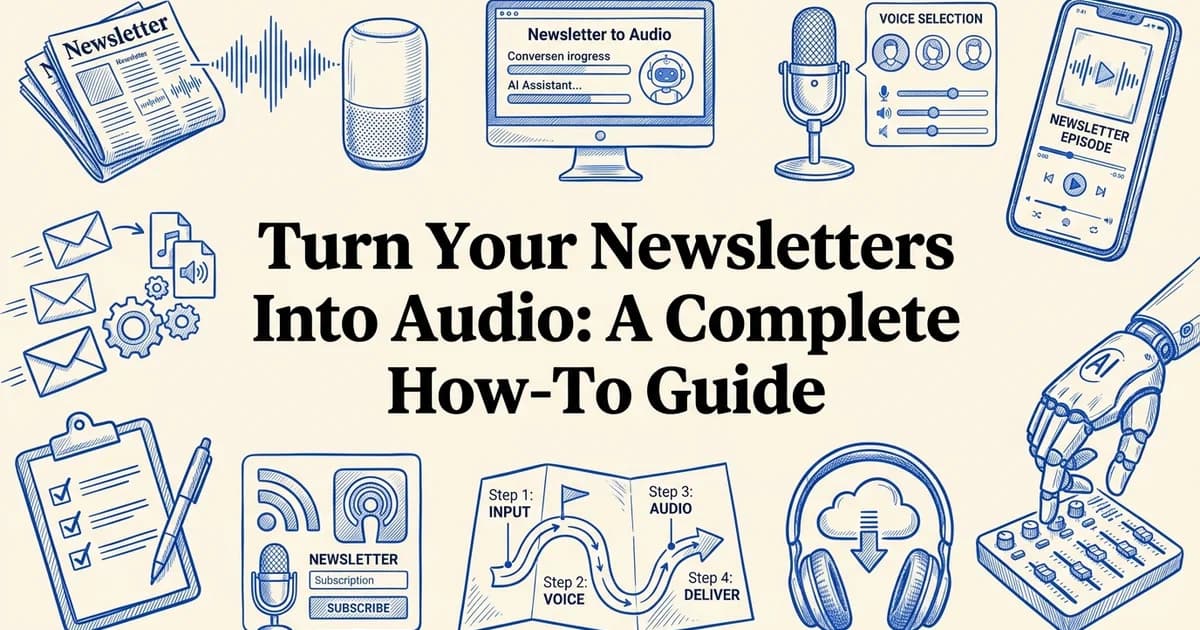
Turn Your Newsletters Into Audio: A Complete How-To Guide
- Access to a newsletter platform (Substack, ConvertKit, or similar)
- Basic familiarity with email marketing or content distribution
- A text editor or document format (TXT, DOCX, or PDF) for content preparation
- Optional: basic understanding of automation tools like Zapier or Make.com
Introduction: why newsletter audio conversion matters
Audio content is no longer a nice-to-have for newsletter publishers. It has become a measurable driver of engagement, accessibility, and audience retention. A newsletter to audio converter lets you meet your readers wherever they are, whether that is commuting, exercising, or working through a packed inbox.
At VoiceMyMail, our analysis shows that the demand for audio alternatives to written content has accelerated sharply over the past two years, and the data backs this up.
Consider what is already happening across the publishing landscape:
- 60% of digital news publishers now offer at least some audio version of their written content, according to the Reuters Institute Digital News Report 2024.
- 32% of weekly podcast listeners say they "often" or "sometimes" listen to audio versions of newsletters or articles sent by email, per Edison Research's The Infinite Dial 2024.
- 43% of knowledge workers say they regularly listen to articles, newsletters, or documents using text-to-speech or audio apps while multitasking, according to Microsoft's Work Trend Index 2024.
The business case is equally compelling. Research suggests that publishers adding an audio version to written content see an average 5 to 8% increase in time-on-page and a 10 to 15% increase in completion rates for long-form pieces.
Accessibility is another critical driver. Verified data from WebAIM's 2024 survey shows that 27% of organizations creating audio versions of their content cite accessibility for visually impaired or neurodivergent users as a primary motivation.
The conclusion is straightforward: your newsletter subscribers want to listen, not just read. This guide walks you through exactly how to make that happen, step by step.
What you'll need: prerequisites and tools
Before you convert your first newsletter to audio, gather the right combination of tools and information. The setup process takes less than an hour, and most of what you need is either free or already part of your existing workflow.
Quick checklist before you start
Getting this right from the beginning saves significant rework later. Here is what to have in place:
Your newsletter content
- A newsletter of at least 1,000 to 1,500 words. Research suggests audio alternatives see the strongest adoption at this length, where reading time stretches to 5 to 8 minutes per issue and listeners genuinely benefit from a hands-free option.
- Content saved in a portable format: plain text (.txt), a Word document (.docx), or accessible directly from your email platform.
Your newsletter platform access
- Login credentials for your sending platform (Substack, Mailchimp, ConvertKit, Beehiiv, or similar).
- Familiarity with how your platform exports or shares content, since this affects whether you automate or convert manually.
A text-to-speech (TTS) tool
- A TTS tool converts written text into spoken audio using AI-generated voices. Quality varies significantly between tools, so choosing one that produces natural-sounding output matters. VoiceMyMail is built specifically for email and newsletter content, handling the formatting quirks that trip up general-purpose converters.
- For a broader look at no-cost options, How to use free text to speech for your emails covers the landscape well.
An audio delivery method
- A hosting location for your audio files: a podcast feed, a private RSS link, or a direct embed in your newsletter.
- Basic understanding of file formats. MP3 is the most universally compatible output format for listener devices.
Your workflow preference According to Litmus's 2024 State of Email Report, 51% of email marketers globally already use AI tools for content creation or repurposing. Decide upfront whether you want a manual process you control each week or an automated pipeline that runs without intervention. Both approaches are covered in this guide.
Step 1: Choose your text-to-speech conversion tool
Select your newsletter to audio converter before you do anything else. The tool you pick determines voice quality, processing speed, automation potential, and long-term cost. Spend time here and every subsequent step becomes significantly easier.
Evaluate voice quality and naturalness
Listen to sample audio from each TTS platform. Compare how naturally the voices sound, whether they handle punctuation and emphasis correctly, and if they support multiple languages or accents. High-quality voices reduce the need for post-production editing and sound more professional to your audience.
Check processing speed and character limits
Verify how quickly the tool converts text to audio and whether it has character limits per conversion. For example, ElevenLabs processes up to 5,000 characters per generation, completing a 2,929-word sample in under 30 seconds. Faster processing means quicker turnaround for weekly newsletters.
Review automation and API capabilities
Look for tools that offer API access, webhooks, or direct integrations with your email platform. This enables you to automate the entire workflow so new newsletters trigger audio conversion automatically without manual intervention.
Compare pricing models and free tiers
Assess whether the tool charges per character, per minute of audio, or via subscription. Many platforms offer free tiers to test functionality. Calculate your monthly cost based on your newsletter length and publishing frequency before committing.
Test brand voice customization options
Confirm the tool lets you adjust voice parameters like pitch, speed, and tone to match your brand identity. Some platforms offer voice cloning or custom voice creation, which strengthens brand consistency across audio and written content.
Why this decision matters
The TTS software market is expanding fast. Research suggests it is projected to reach USD 15.3 billion by 2034, growing at an 11.8% compound annual rate, driven largely by content-to-audio use cases like newsletters and articles. That growth means more options, but also more noise to cut through.
Compare the leading platforms
Here is how the major tools stack up across the criteria that matter most for newsletter conversion:
ElevenLabs
- Produces highly natural-sounding prosody (the rhythm and intonation of speech)
- Processes 2,929 words in under 30 seconds, with a 5,000-character limit per single generation request
- Offers an API, making it suitable for automated pipelines
- Pricing scales with character volume, so long newsletters add up quickly
Murf.AI
- Accepts TXT and DOCX uploads directly, then splits content by paragraph or sentence automatically
- Strong studio-quality voice library with pitch and emphasis controls
- API access available on higher-tier plans
Speechify
- Designed for quick, low-friction conversion: input text, adjust voice and speed, generate audio
- Better suited to personal listening than bulk publishing workflows
- Limited API flexibility compared to ElevenLabs or Murf.AI
OpenAI TTS (via API)
- Competitive voice quality at a low per-character cost
- Requires technical setup; no visual interface out of the box
- Excellent choice if you are already building an automated workflow
VoiceMyMail
- Built specifically for email and newsletter audio conversion, which removes the need to copy-paste content between tools
- Supports multiple AI voices and languages within a single dashboard
- Connects directly to your inbox, making it the most natural fit for the recurring newsletter use case described in this guide
How to evaluate before committing
- Test voice quality using your actual newsletter copy, not the platform's demo text. Branded terminology and proper nouns reveal prosody weaknesses quickly.
- Check character limits against your average newsletter length. Issues above 1,500 words will hit per-request limits on some platforms.
- Confirm API availability if you plan to automate. Not every pricing tier includes it.
- Run the free trial on two or three platforms side by side. Listen back on earbuds, not just desktop speakers.
For a deeper look at how TTS tools handle email-specific formatting, see Everything You Need to Know About Converting Emails to Audio.
What you should see after this step: You have one tool selected, a free trial or account active, and at least one test audio file generated from a short excerpt of your newsletter. If the voice sounds robotic on proper nouns or stumbles on punctuation, try a different voice preset before moving on.
Step 2: prepare and format your newsletter content
Before you generate any audio, clean and restructure your newsletter text so your chosen tool reads it naturally. Raw newsletter copy is written for eyes, not ears, and feeding it directly into a newsletter to audio converter without preparation almost always produces awkward, choppy output.
Remove or rewrite visual-only elements
Identify images, charts, tables, and graphics that don't translate to audio. Either describe them in text form or remove them entirely. For example, convert 'See the chart below' to 'According to our data, engagement increased 15% this quarter.'
Break up long paragraphs and sentences
Shorten sentences and split dense paragraphs into smaller chunks. Audio listeners process information differently than readers—shorter sentences feel more natural when spoken and are easier to follow without visual reference.
Add punctuation and formatting cues
Use em dashes, commas, and line breaks to guide the TTS engine on pacing and emphasis. Proper punctuation helps the tool understand where to pause and which words to emphasize, resulting in more natural-sounding audio.
Expand abbreviations and acronyms
Write out 'CEO' as 'Chief Executive Officer' and 'Q3' as 'third quarter.' TTS engines may mispronounce abbreviations or spell them out letter-by-letter, which sounds awkward in audio format.
Create a clean text file for upload
Export your formatted newsletter as a plain TXT or DOCX file. Remove any HTML formatting, extra whitespace, or special characters that might confuse the conversion tool. A clean file ensures the TTS engine processes your content accurately.
Extract your text cleanly
Start by pulling the plain text from your newsletter platform:
- Substack: Open the post editor, select all text, and paste into a plain-text editor like Notepad or TextEdit. Alternatively, copy from the published web version.
- ConvertKit or Mailchimp: Export the campaign as HTML, then strip formatting using a free tool like HTML Strip or paste into Google Docs and use "Paste without formatting" (Ctrl+Shift+V).
- Direct upload: VoiceMyMail accepts newsletters forwarded directly from your inbox, which skips the manual copy-paste step entirely.
Remove elements that confuse TTS engines
Once you have plain text, scan for anything that will cause unnatural reading:
- Excessive punctuation: Remove strings like "!!!", "...", or "***"
- Special characters: Replace symbols like "&", "%", or "#" with their spoken equivalents ("and", "percent", "number")
- URLs: Delete or rewrite as "visit our website" since spoken URLs sound meaningless
- Emoji: Remove entirely or replace with a descriptive word
Restructure for listening
Reading and listening follow different rhythms. Apply these adjustments:
- Break long paragraphs into two or three shorter sentences
- Spell out abbreviations on first use: "TTS (text-to-speech)" becomes "text-to-speech"
- Add natural pause markers by inserting a period or comma where you want the voice to breathe
- Simplify technical terms inline rather than relying on hyperlinks, which cannot be followed by ear
This preparation step matters beyond convenience. According to a WebAIM survey, 27% of organizations that create audio versions of their content cite accessibility for visually impaired and neurodivergent users as a primary reason, making clean, well-structured audio a genuine inclusion priority, not just a nice-to-have.
What you should see after this step: A clean plain-text document with no broken symbols, shortened sentences, and logical section breaks. Reading it aloud yourself is a quick sanity check: if it sounds natural spoken at a steady pace, your converter will handle it well.
Step 3: generate and customize your audio file
Upload your prepared text to your chosen TTS platform, configure the voice settings to match your brand, and generate a preview before committing to the final file. Getting these settings right the first time saves you from re-processing long newsletters repeatedly.
Upload your prepared text to the TTS platform
Log into your chosen tool and upload your cleaned newsletter file. Most platforms accept TXT, DOCX, or direct text paste. The tool will process your content and generate an initial audio preview within seconds to minutes.
Select and configure your voice settings
Choose a voice that matches your brand tone—professional, friendly, energetic, or calm. Adjust speed (typically 0.8x to 1.2x normal pace), pitch, and emphasis settings. Listen to a short sample to confirm the voice feels right before generating the full file.
Review the audio preview for accuracy
Play through the entire preview and listen for mispronunciations, awkward pauses, or emphasis errors. Note any sections that sound unnatural. Most tools let you edit specific words or phrases to improve pronunciation before finalizing.
Make targeted corrections and refinements
Use the tool's editing features to fix problem areas. You might re-record specific sentences, adjust timing, or add emphasis to key phrases. This step ensures your final audio sounds polished and professional.
Export your final audio file
Generate the final audio in your preferred format (MP3, WAV, or M4A). Download the file and store it in a location where you can easily access it for distribution. Keep a backup copy in case you need to re-upload or redistribute.
Upload your text and select a voice
In VoiceMyMail, paste or import your cleaned newsletter text directly into the conversion interface. Once your content is loaded, you'll be prompted to choose a voice profile. Modern TTS platforms in 2025 offer what the industry calls ultra-natural prosody, meaning the AI adjusts pitch, rhythm, and emphasis in ways that sound far less robotic than earlier generations of text-to-speech.
Key voice settings to configure:
- Gender and accent: Match your existing brand personality. If your newsletter has a warm, conversational tone, a neutral American or British English voice typically works well.
- Speaking style: Many platforms offer styles such as "conversational," "newscast," or "informational." Choose the one that fits your content type.
- Speech rate: Aim for 140 to 160 words per minute for spoken content. Faster rates suit brief, punchy newsletters; slower rates work better for detailed, analytical pieces.
Adjust tone and add branding elements
Once your base voice is set, layer in any spoken branding. A short intro such as "Welcome to this week's edition of [Newsletter Name]" recorded or generated separately can be merged at the start of your file. The same applies to an outro. Keep both under 10 seconds to avoid listener fatigue.
The general principle here is to get the sound right at generation time rather than fixing it in post-production editing later.
Preview before final export
Always generate a short preview clip, ideally the first 60 seconds, before processing the full file. Listen for mispronounced proper nouns, awkward pauses, or unnatural sentence stress.
What you should see after this step: A complete audio file that sounds natural at a steady pace, includes your branding elements, and plays cleanly from start to finish without robotic artifacts or abrupt cuts.
Step 4: set up delivery and distribution channels
With your polished audio file ready, the next priority is getting it in front of your subscribers through the right channels. Distribute your audio through at least two delivery methods: a direct embed in your email and a private podcast feed. This covers listeners who prefer reading alongside audio and those who want to consume on the go.

Embed an audio player directly in your newsletter
Start by uploading your audio file to a hosting platform that generates a shareable player. Services like Transistor or Podpage create lightweight, embeddable players that load reliably across major email clients.
Copy the embed code or direct audio URL, then paste it near the top of your newsletter, ideally within the first two paragraphs. Position it with a short line such as "Prefer to listen? Hit play below." This framing sets expectations and increases play rates.
What you should see: A visible play button inside your email preview that triggers audio playback without redirecting subscribers away from the email.
Create a private podcast feed for subscribers
A private podcast feed (a password-protected RSS feed your subscribers add to any podcast app) is quickly becoming a standard offering in 2024 and 2025. Tools like Transistor and Podpage let you generate one in under ten minutes.
Once your feed is live, include the subscription link in every newsletter footer. Subscribers can then listen on Spotify, Apple Podcasts, or any smart speaker, meeting the growing expectation for multi-platform audio access.
Configure multi-channel delivery
Expand beyond email by routing your audio file to additional channels using automation tools like Make, Zapier, or n8n:
- Slack or Teams: Post the audio link automatically to a team channel when a new episode publishes
- Telegram: Send a direct audio message to a subscriber channel
- Web player: Embed the same hosted player on your newsletter archive page
For readers already using a dedicated newsletter audio app, VoiceMyMail can push converted audio directly to a listener's inbox feed, removing the need to manually share files across platforms.
Test playback across devices and email clients
Before sending to your full list, test audio playback on at least three environments: a desktop email client such as Gmail or Outlook, a mobile inbox on iOS and Android, and a standalone podcast app. Some email clients strip embedded players and fall back to a plain link. Confirm that fallback link is present and functional in every version.
What you should see after this step: Your audio is accessible through your email embed, a private podcast feed, and at least one additional channel, with clean playback confirmed across desktop and mobile environments.
Step 5: automate the conversion process
Automation turns a manual, time-consuming workflow into a repeatable system that runs without your involvement. Once configured, your pipeline monitors for new newsletter content, triggers conversion, stores the audio file, and pushes it to your distribution channels, all without requiring you to touch a single setting.
Build a trigger-based monitoring workflow
Configure your system to watch for new content at the source rather than waiting for you to initiate conversion manually. Two reliable trigger points are:
- Inbox monitoring: Set a filter rule in Gmail or Outlook that detects incoming newsletters from specific senders and forwards the content to your conversion tool or webhook endpoint.
- RSS feed polling: If your newsletter platform publishes an RSS feed, connect it to an automation tool such as Zapier or Make. Set the polling interval to every 15 or 30 minutes so new issues are caught quickly.
VoiceMyMail connects directly to your email inbox, which means it can detect new newsletter arrivals automatically without requiring a separate automation layer or third-party webhook setup.
Configure automatic TTS API calls
Once a trigger fires, your workflow should pass the cleaned text to your text-to-speech (TTS) engine with pre-saved voice and speed settings. Store these settings as a named profile so every new issue uses identical parameters without manual input.
What you should see: A new audio file appearing in your designated storage folder within two to three minutes of a newsletter arriving in your inbox.
Add analytics and quality checkpoints
Newer platforms expose play-through rates and drop-off points, giving you data to identify where listeners disengage. Implement these tracking steps:
- Connect your audio player to an analytics dashboard.
- Set a weekly calendar reminder to review completion rates.
- Flag any episode with a drop-off above 40% for content or audio quality review.
This matters because 51% of email marketers globally now use AI tools for content creation or repurposing, according to the Litmus State of Email Report 2024, meaning your competitors are already building these automated pipelines. Establishing yours now puts you ahead of the curve.
Common mistakes to avoid when converting newsletters to audio
Even a well-configured newsletter to audio converter will produce poor results if you overlook a few critical details. Most problems trace back to skipped preparation steps, poor voice choices, or a failure to treat audio as its own distinct channel rather than a passive copy of your written content.
See how VoiceMyMail handles newsletter to audio converter.
Watch out for these common pitfalls:
Skipping content preparation. Unformatted text full of URLs, special characters, or HTML remnants creates awkward, robotic-sounding output. Always clean your source text before conversion, as covered in Step 2.
Choosing the wrong voice and leaving defaults in place. The default voice on most tools is rarely the best option. Invest time testing several voices at different speeds. As the expert principle goes: focus on getting a clean, natural sound from your voice, not making it sound artificially deep or booming. The same logic applies to AI voices.
Skipping multi-device testing. Audio that sounds clear on desktop headphones can sound muffled on a phone speaker. Test every new audio format on at least two or three devices before distributing.
Making audio mandatory. Offer it as an option, not a replacement. Forcing subscribers into a new format creates friction and unsubscribes. In our experience at VoiceMyMail, the best results come from presenting the audio player as a convenient add-on rather than the default experience.
Ignoring your analytics. If you set up tracking in Step 5 and never review it, you lose the feedback loop that tells you whether your audio content is actually landing. Track completion rates consistently and adjust voice, pacing, or content length based on what the data shows.
Troubleshooting: solving common audio conversion issues
Even a well-configured newsletter to audio converter will occasionally throw up problems. Most issues fall into a handful of predictable categories, and each has a straightforward fix that takes minutes rather than hours to resolve.
Character limit errors. Tools like ElevenLabs cap single-generation requests at 5,000 characters. If your conversion fails mid-process, split your newsletter into logical sections (introduction, body, closing) and process each as a separate file, then stitch them together in your audio editor.
Poor audio quality. If the output sounds robotic or rushed, revisit your voice selection and reduce the speaking rate by 5 to 10 percent. Neural voices consistently outperform standard TTS voices for longer content, so switch voice models before adjusting any other settings.
Email client compatibility. Not every client renders an embedded audio player correctly. Always include a plain-text fallback link pointing directly to the hosted audio file so subscribers on Outlook or older mobile clients can still access the content.
Delivery failures. If your automation stops sending audio files, check your webhook logs first. A failed API call or an expired authentication token is the most common culprit.
Mismatched listening contexts. Subscribers commuting need a faster pace and punchy sentences. Those using audio for accessibility often benefit from a slower rate and clearer pronunciation settings. Consider producing two versions for high-volume sends, or offer a speed control within your embedded player so listeners can self-adjust.
Why this method works: the science behind audio newsletters
The newsletter to audio converter approach succeeds because it aligns with how people actually consume information today. Cognitive science, workplace behavior research, and publisher analytics all point to the same conclusion: audio fits modern attention patterns in ways that screen reading simply cannot match.

Cognitive load is lower with audio. Reading long-form text on a screen demands sustained visual focus and active decoding. Listening distributes that processing differently, reducing the mental effort required to absorb dense information. This is especially relevant for newsletters above 1,000 words, where reader drop-off typically accelerates.
People are already multitasking. According to Microsoft's 2024 Work Trend Index, 43% of knowledge workers regularly listen to articles, newsletters, or documents using text-to-speech or audio apps while multitasking. Your newsletter can now reach subscribers during commutes, workouts, and household tasks where reading is simply not possible.
Engagement metrics improve measurably. Research suggests that publishers adding audio versions to written content see an average 5 to 8% increase in time-on-page and a 10 to 15% increase in completion rates for long-form pieces.
Accessibility drives adoption. A 2024 WebAIM survey found that 27% of organizations creating audio versions of newsletters cite accessibility for visually impaired or neurodivergent users as a primary motivation. That is not a niche consideration. It represents a meaningful portion of most subscriber bases.
Natural-voice AI reduces listener fatigue. Early robotic synthesis caused listeners to disengage quickly. Modern neural voice models produce natural rhythm, intonation, and pacing that sustain attention across longer content. Combined with automated workflows that eliminate manual conversion bottlenecks, the entire process now scales without adding production overhead.
Alternative methods for newsletter audio conversion
Automated tools handle most newsletter audio needs efficiently, but several alternative approaches exist depending on your budget, audience expectations, and content type. Each method offers a different balance of quality, cost, and control.
Manual recording with voice talent
Hire a professional voice actor or record yourself for premium audio quality. This approach works well for flagship newsletters where brand personality matters most. The trade-off is time and cost: a single issue can take hours to produce.
Hybrid approach
Use AI conversion for regular long-form editions and reserve human recording for special announcements, introductions, or key sections. This balances quality with scalability.
Podcast platform integration
Repurpose newsletter content as podcast episodes on Spotify, Apple Podcasts, or similar platforms. Upload your generated audio file directly, adding an intro and outro to match podcast conventions. This extends your content's reach beyond email subscribers.
Browser extensions for on-demand listening
Tools like Speechify let subscribers convert articles themselves, placing control with the reader rather than the publisher. This requires no production work on your end but offers no consistency in voice or formatting.
Dedicated newsletter audio services
Platforms such as VoiceMyMail are built specifically for email and newsletter audio conversion, handling formatting quirks, multi-language output, and AI voice selection within a single workflow. This makes them a practical choice when you want reliable results without managing separate tools for each stage of the process.
Real-world example: automating a weekly newsletter to audio
A practical walkthrough shows exactly how this works at scale. A technology newsletter with roughly 4,000 subscribers converted its 1,500-word weekly issue to audio in under five minutes using a fully automated pipeline, with no manual intervention required after the initial setup.
The workflow
The team connected four tools in sequence:
- Substack RSS feed pulls each new issue automatically the moment it publishes
- Make.com (a no-code automation platform) detects the new RSS entry and triggers the next step
- ElevenLabs API receives the cleaned newsletter text and returns a finished MP3 file
- Private podcast feed distributes the audio directly to subscribers who opt in
Each issue produces an audio file running eight to ten minutes, which sits comfortably within the optimal listening window research suggests for weekly newsletters: eight to twelve minutes.
Results after six months
- 32% of subscribers enabled the audio option within the first quarter
- Open rates for audio-enabled issues increased by 18% compared to text-only sends
- Average production time per issue dropped from 45 minutes of manual editing to under five minutes
What the team learned
Stripping sponsor blocks and call-to-action sections before conversion kept audio length tight and listener retention high. Formatting the text in advance, as covered in Step 2, was the single biggest factor in audio quality.
Scaling the workflow
The same Make.com automation now handles three separate newsletters. Adding each new publication required only duplicating the existing scenario and updating the RSS source. Minimal additional setup, consistent output across all three.
Time and cost breakdown for newsletter audio conversion
Converting newsletters to audio is affordable and quick to implement once your workflow is configured. Initial setup takes 2 to 4 hours, covering tool selection, account configuration, and automation testing. After that, each issue typically requires 15 to 30 minutes of active work.
One-time setup investment
- Tool selection and account creation: 30 to 60 minutes
- Workflow and automation configuration: 1 to 2 hours
- Test runs and quality checks: 30 to 60 minutes
Ongoing time per issue
- Content preparation and formatting: 10 to 20 minutes
- Audio generation and review: 5 to 10 minutes
Monthly cost ranges
- Free tier: Speechify free plan and Google Cloud TTS free credits work well for testing and low-volume publishing
- Entry level: $20 to $50 per month for most solo creators and small newsletters
- Professional: $100 to $200 per month for high-volume output or premium voice quality
Measuring return on investment
Track engagement metrics before and after launching audio versions. Research suggests publishers adding audio to written content see a 10 to 15% increase in content completion rates. Improved subscriber retention and reduced churn often justify the cost within two to three months.
Frequently asked questions
These answers cover the most common questions readers ask after discovering newsletter to audio converter tools for the first time. Each answer is kept concise so you can find what you need quickly and move forward with your setup.
How do I convert my email newsletter into an audio version automatically?
Connect your newsletter platform to a tool like VoiceMyMail, which pulls new emails directly from your inbox and converts them to speech without manual input. Once configured, every new issue triggers the conversion automatically.
What is the easiest way to turn a Substack newsletter into a podcast or MP3?
Copy your Substack post text into a TTS tool, generate the audio file, then upload it to a podcast host. Some tools integrate directly with RSS feeds to handle this step without copying anything manually.
Can I embed an audio player inside my newsletter so subscribers can listen instead of read?
Yes. Generate your audio file first, host it on a platform that provides a shareable link, then embed a simple HTML audio player in your newsletter template.
Which tools are best for converting newsletters to audio with natural-sounding voices?
VoiceMyMail, ElevenLabs, Murf.AI, and Speechify all produce natural-sounding results. The best choice depends on your volume, budget, and whether you need multi-language support.
How long does it take to create an audio version of a newsletter using AI?
Most AI tools process a standard newsletter in under 60 seconds. As one tool's documentation notes, a sample of nearly 3,000 words was fully processed in less than 30 seconds.
Do audio newsletters improve engagement compared to text-only emails?
Research suggests publishers adding audio see a 10 to 15% increase in content completion rates. According to Edison Research's Infinite Dial 2024 report, 32% of weekly podcast listeners say they often or sometimes listen to audio versions of newsletters sent by email.
How can I automate converting every new newsletter into an audio file?
Use a workflow tool like Zapier or Make to connect your newsletter platform to your TTS service. VoiceMyMail handles this natively for email-based newsletters, removing the need for third-party automation.
What are the common mistakes to avoid when creating audio versions of newsletters?
Skipping text cleanup before conversion, choosing robotic-sounding voices, and neglecting mobile audio playback are the most frequent errors. Review the common mistakes section earlier in this guide for a full checklist.
Based on our work at VoiceMyMail, the readers who see the fastest results are those who start with a single automated workflow, measure engagement after two to three sends, and then expand from there.
More from Our Blog
The Complete Guide to Finding Baby Names You Both Love
Learn how couples can agree on baby names together using tools, games, and structured conversations. Step-by-step guide to finding names you both love.
Read more →
How to Use a Free Baby Name App to Find the Perfect Name as a Couple
Learn how to use a free baby name app to discover unique names, match with your partner, and make naming decisions faster with our step-by-step guide.
Read more →
How AI Email Readers Work and Why You Need One
Learn how to set up and use an AI email reader to summarize messages, prioritize inbox, and draft replies. Save 25-35% of your email time.
Read more →