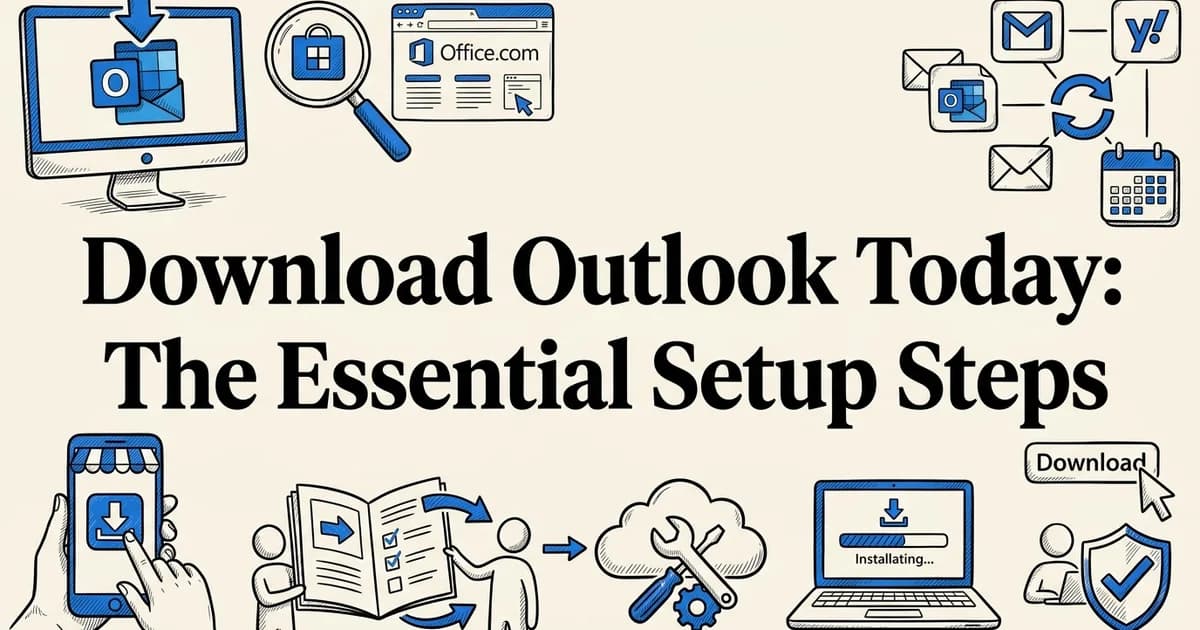
Download Outlook Today: The Essential Setup Steps
- A compatible device (Windows 10/11, macOS, iOS, or Android)
- A valid Microsoft account (free or paid)
- Active internet connection
- At least 2-4 GB of available storage space
Introduction: why downloading Outlook matters
At VoiceMyMail, our analysis shows that choosing the right Outlook download path from the start is the single biggest factor in a smooth, error-free setup. Skip this step, and you risk installing the wrong version for your device or subscription level.
Microsoft Outlook remains one of the world's most trusted email clients, and its reach continues to grow. Research suggests there are now 80.8 million Microsoft 365 consumer subscribers globally, making Outlook a cornerstone of how people manage communication every day.
More ways to download than ever before
The good news is that getting Outlook no longer requires a paid subscription in every case. According to Microsoft, a free version of Outlook is available for Mac users, while Windows users can access the new Outlook app directly through the Microsoft Store at no cost. Paid Microsoft 365 subscribers unlock additional features and the classic desktop experience.
Why the right method matters
Multiple download options exist across Windows, Mac, iOS, and Android. Picking the wrong one wastes time and can cause installation conflicts. Understanding which version fits your device and needs before you begin saves considerable frustration and gets your inbox running faster.
Prerequisites: what you need before downloading Outlook
Before starting your Outlook download, confirm you have everything in place. Gathering these requirements upfront prevents interruptions mid-installation and ensures the app runs smoothly from the first launch.
Compatible device and operating system
Outlook runs on Windows 10 and 11, macOS, iOS, and Android. According to Install or reinstall classic Outlook on a Windows PC – Microsoft Support, a single Microsoft 365 account can cover Outlook installations across multiple devices.
A valid Microsoft account
You need either a free Microsoft account or a paid Microsoft 365 subscription. The free account covers basic functionality, while a subscription unlocks the full classic desktop experience.
Storage, connectivity, and admin access
Keep these three requirements in mind before you begin:
- Sufficient storage: Reserve at least 4 GB of free space on your device
- Active internet connection: Required for downloading and completing initial setup
- Administrator access: Windows users must have admin privileges to install desktop software
Step 1: choose your download method based on your device
Before you start any outlook download, identify which version matches your device and account type. The right choice depends on three factors: your operating system, whether you have a Microsoft 365 subscription, and which download source applies to your situation.
Desktop or mobile: picking your platform
Start by confirming which device you are setting up:
- Windows users can choose between the new Outlook (available through the Microsoft Store) or classic Outlook, which installs via Office.com or your Microsoft 365 account portal
- Mac users download Outlook through the dedicated Microsoft Outlook for Mac page, which requires a Microsoft 365 subscription
- iOS users install from the Apple App Store
- Android users install from the Google Play Store
Mobile versions are free to download and work with both free Microsoft accounts and paid subscriptions.
Subscription or free account: what unlocks which version
Your account type directly determines your options:
- Microsoft 365 subscribers get full access to classic Outlook on Windows and Mac, including offline functionality and advanced features
- Free account holders can use the new Outlook for Windows via the Microsoft Store, or either mobile app at no cost
New Outlook vs. classic Outlook on Windows
Windows users face one additional choice. The new Outlook is a lighter, modern app built for everyday email tasks. Classic Outlook offers deeper integration with calendars, tasks, and third-party add-ins. If you rely on hands-free tools like VoiceMyMail to listen to your inbox, confirm compatibility with your chosen version before proceeding.
Once you know your platform and account type, move to the step that matches your device.
Step 2: download Outlook on Windows 10 or 11
Windows gives you three distinct paths to get Outlook installed, and the right one depends on your account type and how you plan to use the app. Before you begin any method, confirm your device meets the basic requirements and has at least 2 to 4 GB of free storage available.
Visit Office.com or the Microsoft Store
Open your web browser and navigate to Office.com, or open the Microsoft Store app on your Windows device. Both options provide official, secure download paths for Outlook.
Sign in with your Microsoft account
Enter your Microsoft account credentials. If you have a Microsoft 365 subscription, use that account. If you're downloading the standalone version, any Microsoft account will work.
Select your preferred language
Choose your language from the dropdown menu. This ensures Outlook installs with the correct language settings for your region.
Click Download and follow on-screen prompts
Click the Download button and allow the installer to run. Follow the installation wizard prompts to complete the setup. The process typically takes 5-10 minutes depending on your internet speed.
Launch Outlook and configure your email account
Once installation completes, open Outlook and add your email account. You can add multiple accounts (Gmail, Yahoo, Outlook.com, etc.) in the account settings.
Method A: download from the Microsoft Store (recommended)
Open the Microsoft Store app on your Windows 10 or 11 device. This is the fastest route for most users and installs the modern, lightweight version of Outlook at no extra cost.
- Search for "Microsoft Outlook" in the Store's search bar.
- Select the result labeled "Microsoft Outlook" published by Microsoft Corporation.
- Click "Get" to begin the download. No payment details are required for the free tier.
- Wait for the progress bar to complete. You should see an "Open" button appear when installation finishes.
Sign in with your Microsoft account to access your inbox immediately.
Method B: download through Office.com (Microsoft 365 subscribers)
If you pay for a Microsoft 365 subscription, you can install the full desktop version of Outlook directly from your account portal.
- Go to Office.com and sign in with your Microsoft 365 credentials.
- Click "Install apps" in the top-right corner, then select "Microsoft 365 apps".
- Run the downloaded installer file and follow the on-screen prompts.
- Once complete, open Outlook from your Start menu and sign in.
According to the Utah Valley University Knowledge Base, signing in with your institutional or Microsoft 365 account during setup automatically activates your license.
Method C: install classic Outlook for legacy systems
Some workflows, particularly those involving older add-ins or on-premises Exchange servers, still require classic Outlook. According to Microsoft Support, classic Outlook is available through Microsoft 365 subscriptions and select standalone Office packages.
Run the installer from your Microsoft account portal as described in Method B, then choose the classic Outlook option if prompted during setup.
Once Outlook opens, you are ready to configure your inbox. If you use productivity tools or email reader apps alongside Outlook, this is a good moment to check their compatibility before moving to your first sync.
Step 3: download Outlook on Mac
Mac users can get Outlook without a Microsoft 365 subscription. The new Outlook for Mac is available as a free standalone download, making it accessible to anyone with a Microsoft account. You have two straightforward routes to get it onto your machine.
Open the Mac App Store
Click the App Store icon in your dock or search for 'App Store' using Spotlight. The App Store is the official source for Mac applications.
Search for 'Microsoft Outlook'
Use the search bar at the top of the App Store and type 'Microsoft Outlook'. Verify you're selecting the official Microsoft app (published by Microsoft Corporation).
Click Get, then Install
Click the Get button, which will change to Install. You may be prompted to authenticate with your Apple ID. Complete the authentication to proceed.
Wait for installation to complete
The download and installation process typically takes 2-5 minutes. Once complete, the Install button will change to Open.
Open Outlook and add your email account
Click Open to launch Outlook for the first time. Follow the setup wizard to add your email account and configure your preferences.
Check your macOS compatibility first
Before downloading, confirm your Mac is running a supported version of macOS. Open the Apple menu, select About This Mac, and note your operating system version. Microsoft regularly updates its minimum requirements, so visiting Microsoft Outlook for Mac before you begin ensures you are working with current compatibility information.
If your macOS version is outdated, update it through System Settings under General > Software Update before proceeding.
Download from the Mac App Store or Microsoft's website
You have two options:
- Open the Mac App Store, search for "Microsoft Outlook," and click Get. This is the fastest route for most users.
- Visit Microsoft Outlook for Mac directly and follow the download prompt from your browser.
Both methods deliver the same application. Expect a download size in the range of 200 to 500 MB, so allow five to fifteen minutes depending on your connection speed. You should see a progress bar in the App Store or your browser's download manager confirming the file is arriving correctly.
Sign in after installation
Once the installer finishes, open Outlook from your Applications folder. Enter your Microsoft account credentials when prompted. Your inbox will begin syncing automatically within a few seconds.
If you manage a high volume of email, this is a practical moment to explore tools that reduce reading fatigue. For example, listening to your newsletters instead of reading them is one way to stay on top of your inbox without screen time adding up.
With Outlook running on your Mac, you are ready to move on to mobile setup.
Step 4: download Outlook on Android devices
Getting Outlook onto your Android phone takes just a few minutes through the Google Play Store. Open the Play Store app, type "Microsoft Outlook" into the search bar, and tap the correct result to begin. The process is straightforward, but a few checks along the way will ensure you install the genuine app.
Open the Google Play Store
Tap the Google Play Store app on your Android device. If you don't have it, it comes pre-installed on most Android phones.
Search for 'Microsoft Outlook'
Use the search bar and type 'Microsoft Outlook'. Look for the official app with the Microsoft logo and verify it's published by Microsoft Corporation.
Tap Install
Tap the Install button. You may be prompted to review permissions that Outlook needs (contacts, calendar, storage). Review and accept to continue.
Wait for the download to complete
The app will download and install automatically. This typically takes 1-3 minutes depending on your internet connection and device speed.
Open Outlook and sign in
Once installation finishes, tap Open. Sign in with your Microsoft account or email address to start using Outlook on your phone.
Verify the official Microsoft app
Before tapping install, confirm you have the right listing. The publisher name should read Microsoft Corporation, not a third-party developer. According to Microsoft Outlook on Google Play, the app has surpassed 1 billion installs and holds a 4.6 out of 5 rating from more than 10 million reviews. Those figures are a reliable signal that you are looking at the authentic listing.

Review permissions and download size
Tap the app listing and scroll down to review the permissions Outlook requests before installing. Common permissions include access to contacts, calendar, and storage. These are expected for a full-featured email client, but it is worth reading through them.
The download size typically falls between 200 and 250 MB, so connect to Wi-Fi before installing if your mobile data plan is limited.
Allow time for the initial sync
After installation, open Outlook and sign in with your Microsoft account credentials. Your inbox will not appear instantly. Give the app two to five minutes to complete its first sync, especially if your mailbox contains a large volume of messages.
Once your email loads, you may find the volume of incoming content easier to manage on the go. Pairing Outlook with habits like smart ways to consume content while commuting can help you stay productive without feeling overwhelmed by a full inbox.
Step 5: download Outlook on iPhone or iPad
Apple device users can install Outlook directly from the App Store in just a few taps. The process is straightforward, but confirming you have the correct, official app before downloading is worth the extra moment it takes.
Find the official Microsoft Outlook app
Open the App Store on your iPhone or iPad and tap the search icon. Type "Microsoft Outlook" into the search bar and tap Search. When results appear, look for the app listed under the publisher name Microsoft Corporation. This confirms you are downloading the genuine product rather than a third-party imitation.
According to Microsoft Outlook on the App Store, the app holds a rating of 4.7 out of 5 from over 7.4 million reviews, making it one of the most trusted email clients available on iOS. That rating is a reliable signal you are looking at the right listing.
Install and launch the app
Tap Get, then authenticate with Face ID, Touch ID, or your Apple ID password to begin the download. Once installation completes, the Outlook icon will appear on your home screen.
Tap the icon to open the app. You should see the welcome screen within a few seconds.
Sign in and complete first-time setup
Tap Add Account and enter your Microsoft account email address and password. Outlook will verify your credentials and begin syncing your mailbox automatically.
What you should see: Your folders and inbox populating within two to five minutes. If nothing loads after that window, check your internet connection and confirm your account credentials are correct before attempting to sign in again.
Common mistakes to avoid when downloading Outlook
Avoiding a few key pitfalls will save you time and frustration during your Outlook download. Most failed installations trace back to the same handful of errors, all of which are easy to prevent once you know what to watch for.
Downloading from unofficial sources
Always download Outlook from Microsoft directly or from official app stores. Third-party websites may bundle malware or distribute outdated versions that behave unpredictably. According to Install or reinstall classic Outlook on a Windows PC – Microsoft Support, the correct starting point is your Microsoft 365 account portal.
Ignoring system requirements
Attempting to install Outlook on a device that does not meet minimum requirements will cause the installation to fail silently or produce cryptic error messages. Check your operating system version and available RAM before you begin.
Not checking storage space
A stalled download is often simply a full hard drive. Confirm you have at least 4 GB of free storage before starting.
Disabling antivirus when needed
If your download stalls repeatedly, temporarily disabling your antivirus software can resolve interference. Re-enable it immediately after installation completes.
Confusing classic Outlook with new Outlook
In our experience at VoiceMyMail, this is one of the most common points of confusion. Classic Outlook and new Outlook for Windows are distinct applications with different interfaces and feature sets. Choose the version that matches your Microsoft 365 subscription and workflow before downloading.
Installing without a stable connection
A dropped connection mid-download corrupts installation files. Connect to a reliable network, preferably wired, before starting.
Troubleshooting: fixing Outlook download and installation issues
Even with the right version selected and a stable connection, the Outlook download process can hit unexpected snags. Most issues fall into a handful of recognizable patterns, each with a straightforward fix you can apply without contacting support.
Download fails or stalls mid-progress
Start by checking your internet connection and running a speed test. If speeds are normal, disable any active VPN, as VPNs can interfere with Microsoft's download servers. Then clear your browser cache and attempt the download again from a fresh session.
Insufficient storage error
Outlook's installation package requires several gigabytes of free disk space. If you see a storage warning, delete temporary files, empty the recycle bin, or move large files to an external drive before retrying. According to Install or reinstall classic Outlook on a Windows PC – Microsoft Support, Microsoft also provides a self-service repair flow that downloads only the files needed to complete a broken installation.
Antivirus blocking the installation
Security software sometimes flags Microsoft installer packages as suspicious activity. Temporarily disable your antivirus or firewall, complete the installation, then re-enable protection immediately afterward.
Microsoft Store app won't download
Close the Microsoft Store completely, then reopen it. If the problem persists, reset the Store cache by opening Command Prompt and running wsreset.exe. This clears corrupted cache data without affecting your existing apps.
Installation hangs partway through
Use the Office online repair tool, available through Windows Settings under Apps. This tool downloads a fresh copy of the necessary files and replaces anything corrupted during the original attempt.
Permission denied errors on Windows
Right-click the installer file and select Run as administrator. Without elevated permissions, Windows blocks certain installation steps, which causes the process to fail silently or display a generic error message.
Why this method works: understanding Outlook's download architecture
Each Outlook download path is engineered for a specific environment, which is why the process feels smooth when you follow the right route for your device and account type. Understanding the underlying architecture helps you make sense of the steps you have already completed.
Microsoft Store and automatic updates
The Microsoft Store version of new Outlook for Windows uses a cloud-based installation model. Rather than writing a large local package to your drive all at once, it streams components as needed and handles future updates silently in the background. According to Microsoft Support, new Outlook for Windows continues to expand its availability through this Store-based delivery system, which keeps the client current without requiring manual reinstallation.

Office.com and subscription verification
When you download through Office.com, the portal authenticates your Microsoft 365 subscription before releasing the installer. This step ties your license to the correct account and ensures the installed product activates without additional input.
Cloud sync versus local storage
Free Outlook clients replace traditional local PST files with continuous cloud sync. Your mail, calendar, and contacts live on Microsoft's servers, which means:
- No large local archives to manage or back up
- Instant access across every signed-in device
- Reduced risk of data loss from hardware failure
Mobile app stores and device optimization
Apple's App Store and Google Play handle device-specific permissions, screen-size optimization, and operating system compatibility automatically. This is why the iOS and Android versions install cleanly without manual configuration. Tools like VoiceMyMail layer on top of this architecture, using the same cloud-connected account to deliver voice-driven email access once your client is in place.
Alternative methods: other ways to get Outlook
Not everyone needs the standard Outlook download path. Depending on your system, workplace, or workflow, several alternative routes can get you up and running just as effectively.
Install Outlook as part of Microsoft 365
If you need the full Office suite alongside Outlook, visit Office.com and subscribe to Microsoft 365. The installer bundles Word, Excel, PowerPoint, and Outlook in a single package, saving you from managing separate downloads.
Download classic Outlook for legacy systems
Older hardware or enterprise environments sometimes require the classic Outlook client rather than the newer app. According to Microsoft Support, you can install or reinstall classic Outlook on a Windows PC directly through your Microsoft 365 account portal, preserving compatibility with older add-ins and workflows.
Use Outlook.com without installing anything
Outlook.com gives you full email access through any browser. No download is required, and your mailbox syncs instantly across devices.
Let corporate IT handle deployment
Many organizations push Outlook through managed deployment tools such as Microsoft Endpoint Configuration Manager. Check with your IT department before downloading independently.
Reinstall Outlook without losing emails
If Outlook is misbehaving, use the built-in Online Repair tool in Windows Settings under Apps. This restores core files while leaving your account data and local folders intact, so no emails are lost during the process.
Real-world example: downloading Outlook for a new Windows 11 user
Picture this: you've just unboxed a new Windows 11 laptop and need to get email running from scratch. No Outlook, no email client, nothing. Here is exactly how that setup looks in practice.
Starting the Microsoft Store download
Open the Microsoft Store from the taskbar, then search for Microsoft Outlook. Select the official Microsoft listing and click Get. According to Microsoft Support, the new Outlook for Windows is now available directly through the Store, making this the fastest route for fresh installations. Once the download completes, click Open.
What you should see: the Outlook welcome screen prompting you to sign in.
Setting up your account and configuring email
Enter your Microsoft account credentials or your work email address. Outlook will automatically detect server settings for most major providers, including Microsoft 365, Gmail, and Yahoo. For manual configurations, have your incoming and outgoing server details ready.
What you should see: your inbox populating within a few minutes.
Syncing emails from a previous Outlook installation
If you used Outlook on another device, your emails, calendar entries, and contacts sync automatically through your Microsoft account. Note that one Microsoft account supports up to 10 Windows devices, so your existing data travels with you seamlessly.
Verifying the installation and testing functionality
Send a short test email to yourself. Confirm it appears in both Sent Items and your Inbox. Check that calendar events and contacts loaded correctly. If anything looks incomplete, restart Outlook and allow a few extra minutes for full synchronization to finish.
Time and cost breakdown: what to expect
Before starting your outlook download, knowing what to expect in terms of time and cost helps you plan accordingly. Most users complete the entire process, from download to a fully configured inbox, in under 30 minutes.
How long the download and installation take
- Download: 5 to 15 minutes, depending on your internet speed and device performance
- Installation: 5 to 10 minutes on modern computers
- Account configuration and initial sync: an additional 5 to 10 minutes
Total setup time typically falls between 15 and 30 minutes for most users.
What Outlook costs
The good news is that cost is rarely a barrier. According to Microsoft, the new Outlook client is free on both Windows and Mac. Mobile apps are also free on Google Play and the App Store.
For enhanced features like advanced security, larger mailbox storage, and premium Office apps, an optional Microsoft 365 subscription runs approximately $6.99 to $20 per month depending on the plan you choose.
Frequently asked questions
How do I download and install Outlook on Windows 10 or 11?
Visit Office.com or the Microsoft Store and sign in with your Microsoft account. According to Microsoft Support, select your preferred language, click Download, and follow the on-screen prompts to complete installation.
Is Microsoft Outlook free to download?
The basic Outlook app is free on Windows, Mac, Android, and iPhone. A Microsoft 365 subscription is required to unlock premium desktop features and larger mailbox storage.
How do I download Outlook on my phone?
Search "Microsoft Outlook" on Google Play or the App Store, then tap Install. Both apps are free, with over one billion Android installs recorded.
What is the difference between the Microsoft Store version and the Microsoft 365 version?
The Microsoft Store app is a lightweight, free standalone client. The Microsoft 365 version includes the full classic Outlook experience alongside Word, Excel, and other premium apps, and requires an active subscription.
Why can't I download or install Outlook?
Common causes include insufficient storage, an outdated operating system, or account permission issues. Check that your device meets minimum requirements and that your Microsoft account credentials are correct before retrying.
How long does the Outlook download take?
Download time depends on your connection speed and the installer type. The Microsoft 365 installer is several gigabytes, so expect anywhere from a few minutes to half an hour on a typical broadband connection.
How do I reinstall Outlook without losing emails and settings?
Your emails are stored on the mail server, not locally, so reinstalling does not delete them. After reinstalling, simply re-add your account and Outlook will resync your messages and folders automatically.
How do I download classic Outlook instead of the new Outlook?
During setup, choose the classic Outlook installer from Office.com rather than the Store app. You can also toggle back from new Outlook using the "Try classic Outlook" switch inside the app settings.
Based on our work at VoiceMyMail, once your Outlook download is complete, consider adding VoiceMyMail to have your emails read aloud, making inbox management faster and more accessible every day.
More from Our Blog
What Reddit Users Say About Audiobook Downloads
Discover where Redditors download audiobooks, best platforms, legal options, and community recommendations for finding your next listen.
Read more →
The Complete Deadlock Reddit Checklist: Everything You Need
Navigate Reddit blackouts and API deadlocks with this actionable checklist. Monitor critical subreddits, set up backup tools, and maintain access when communities go dark.
Read more →
Tava izvēle vārdu izvēlē – kas patiešām svarīgi vecākiem
Atbildes uz populārākajiem jautājumiem par tavu izvēli. Uzzini, kā pieņemt labākos lēmumus un izvēlēties to, kas der tieši tev.
Read more →