
Tired of sifting through pages of irrelevant Google results? Let's turn your basic searches into precision instruments. This guide is your go-to cheat sheet for Google search operators, built for both a quick lookup and a deeper dive into how they work. I'll show you how to filter out the noise and find exactly what you're looking for, fast.
Your Quick Guide to Mastering Google Search
Whether you're deep in SEO, a student on a research mission, or just plain curious, mastering these commands is a massive time-saver. At the end of the day, using operators is all about aligning your search intent with the primary goal of a search engine: delivering trusted, precise information.
Think of these special characters and commands as power-ups for your standard text search. They take a broad query and make it laser-focused. This skill is more important than ever. As of 2025, over 60% of Google searches in the U.S. now happen on mobile, where getting quick, accurate results is a must. You can find more on these trends in this article on search hacks you need to know in 2025 on Vocal.media.
To get us started, here’s a quick-reference table with some of the most essential operators you'll find yourself using again and again.
Top 10 Essential Google Search Operators
| Operator | Syntax Example | Function |
|---|---|---|
| "" | "content marketing strategy" | Finds the exact phrase. |
| - | SEO -backlinks | Excludes a specific word. |
| OR | "guest post" OR "write for us" | Finds results containing either term. |
| site: | site:rankhub.ai | Restricts search to a single website. |
| inurl: | inurl:blog "digital marketing" | Finds a word within the URL. |
| intitle: | intitle:"beginner's guide" | Finds a word within the page title. |
| filetype: | filetype:pdf SEO report | Searches for a specific file type. |
| related: | related:forbes.com | Finds sites similar to a given domain. |
| .. | smartphone $300..$500 | Searches within a numerical range. |
| * | "how to * a blog" | Acts as a wildcard for any word. |
This table is just a starting point, but even mastering these few can dramatically improve your search game.
The infographic below gives you a bird's-eye view of the main operator categories we'll be exploring throughout this guide.
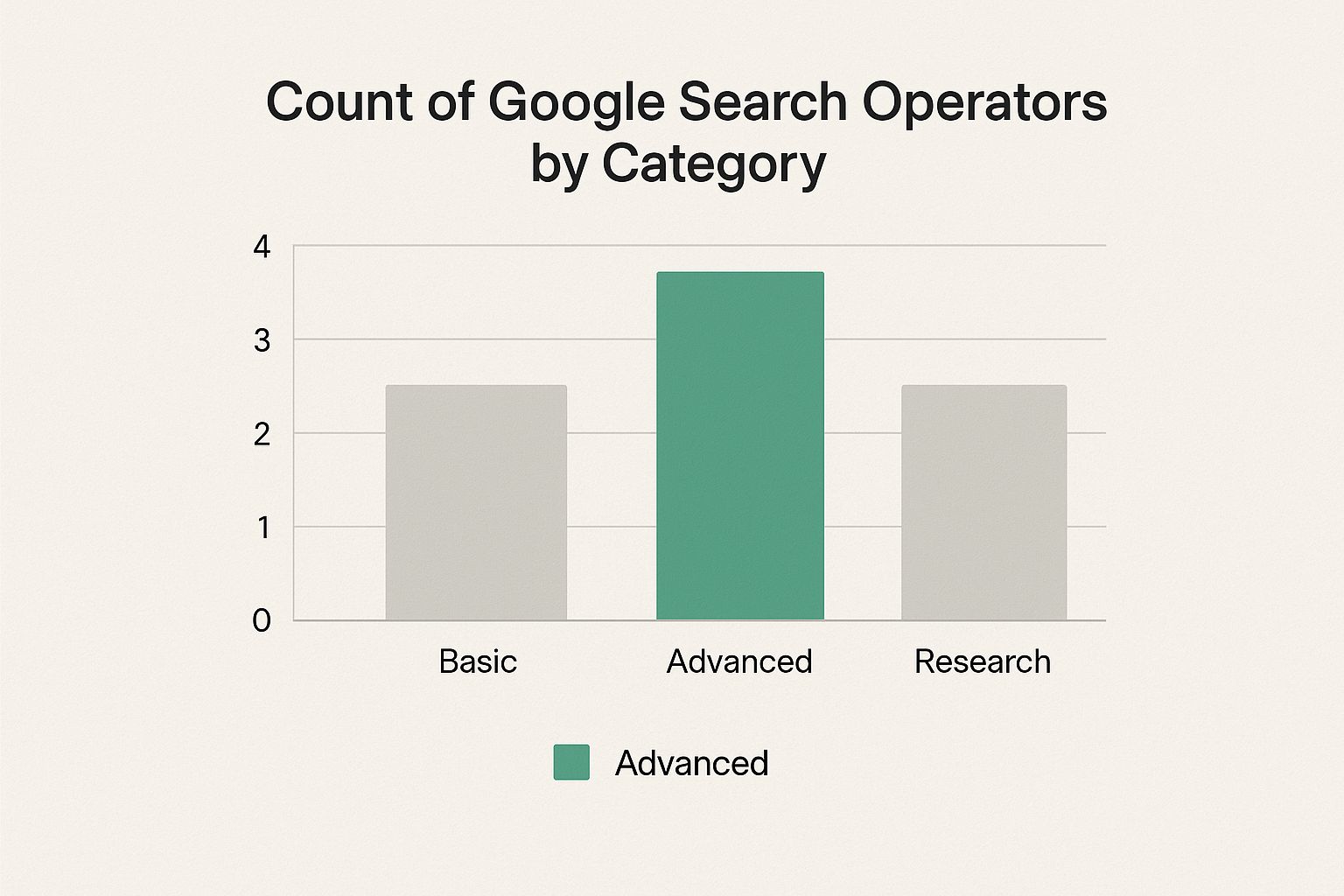
As you can see, the operators are pretty evenly spread across basic, advanced, and research-focused functions. The real trick is knowing which tool to grab for the job at hand. For any digital professional, this knowledge is a fundamental part of a solid strategy, especially when learning how to do keyword research.
Consider this cheat sheet your new best friend for getting straight to the good stuff.
Mastering the Foundational Search Commands
Before we dive into the deep end, let's start with the basics. These foundational commands are the absolute essentials, the building blocks for just about every advanced search you'll ever run. Think of them as the bread and butter of your Google-fu.
Even though Google's AI is incredibly smart, sometimes you just need to take the wheel yourself. While studies show 85% of initial queries hit the mark without any tweaks, these operators give you a massive advantage for that tricky 15% and any time you're doing specialized research.
Precise and Exclusive Searches
Here are the three foundational commands you'll probably find yourself using every single day.
Quotation Marks for Exact Phrases
""When you wrap a search term in quotes, you're telling Google, "Hey, I want these exact words, in this exact order." It’s incredibly useful for finding the source of a specific quote or zeroing in on an article with a known title.Example: Searching for
"best content marketing strategy"forces Google to show you pages containing that precise phrase. It filters out all the noise from pages that just happen to mention "content," "marketing," or "strategy" somewhere on the page.
Hyphen to Exclude Words
-Think of the hyphen as your "NOT" button. Stick it right in front of a word (no space!) to banish any page containing that term from your results. This is a lifesaver when your search term has more than one meaning.Example: A search for
social media marketing -facebookwill pull up info on platforms like TikTok and Instagram while keeping Facebook-related results out of sight.
The whole point of these operators is to give you a level of control that a normal, everyday search just doesn't have. If you want to get a better feel for how search engines think, it's worth exploring the concepts behind understanding keyword match types in Google Ads, as it's based on a similar idea of getting more specific.
Asterisk as a Wildcard
*The asterisk is your handy placeholder. It stands in for any word or even a few words you can't remember. It's also great for discovering different variations of a phrase, which is a key part of good keyword research best practices.Example:
how to * a blog postcould bring back results for "how to write a blog post," "how to format a blog post," or "how to promote a blog post." It's a simple trick with some serious power.
Advanced Operators for Pinpoint Accuracy

Alright, now that you've got the basics down, it's time to get into the really powerful stuff. Think of advanced operators as the secret weapons in the toolkit of any serious SEO, researcher, or marketer. These commands take you beyond simple searches, letting you pinpoint information on specific websites, in certain file types, or even within particular parts of a webpage.
Take a look at the screenshot above. The site: operator is doing the heavy lifting, telling Google to only look for the phrase "digital marketing" on pages within Wikipedia's domain. This is a game-changer when you need info from a single trusted source and don't want to wrestle with its internal search bar.
Mastering these operators can seriously speed up your workflow, especially when you're conducting a comprehensive technical SEO audit and need to check how a site is indexed.
Slicing Through the Web with Precision
Let's dive into the operators that give you almost surgical control over your search results. These are your specialized tools for very specific tasks.
site:As we just saw, this one restricts your search to a single website. It's perfect for digging up an old article on a specific blog or seeing which of your own pages Google has indexed.- Example:
content strategy site:rankhub.ai
- Example:
filetype:Ever needed to find a specific document, not just a webpage? This operator is your best friend. Use it to filter results for specific file formats like PDFs, PowerPoint presentations (PPT), or Excel sheets (XLSX).- Example:
quarterly earnings report filetype:pdf
- Example:
These commands aren't just about finding information; they’re about finding the right kind of information in the right place. By specifying a domain or a file type, you instantly cut through thousands of irrelevant results.
Searching Within Specific Page Elements
Ready to get even more granular? You can tell Google exactly where on a page to look for your keywords. This is where operators like intitle:, inurl:, and intext: shine.
intitle:This operator finds pages where your keyword shows up in the page's title tag. It's an excellent way to find articles that are laser-focused on your topic.- Example:
intitle:"link building guide"
- Example:
inurl:This one scans the page's URL for your keyword. It's a handy trick for finding specific page types, like blog posts or resource sections, which often have revealing URL structures.- Example:
inurl:blog "seo tips"
- Example:
Combining Operators for Super Searches

The real magic of Google search operators happens when you stop using them one by one and start chaining them together. This is where you go from simple lookups to building "super searches" that can pinpoint exactly what you need with surgical precision.
Think of it like building with LEGOs. A single brick is fine, but the fun starts when you snap them together. Combining operators lets you build something far more powerful, which is how pros dig up everything from deep market research to obscure technical SEO issues.
A basic site: search is useful, sure. But what if you're hunting for guest post opportunities on business sites and want to filter out all the noise from Pinterest? That's when you start stacking.
Crafting a Powerful Guest Post Search
Let's walk through a classic combo that SEOs and marketers use all the time to find guest blogging spots. We want to find pages on .com sites that are actively looking for writers, but we absolutely don't want to see results from Pinterest.
Here’s the search query we'd build:
"guest post" intitle:"write for us" site:.com -site:pinterest.com
This one little string is actually telling Google to do 4 things at once:
"guest post": Only show me pages containing this exact phrase.intitle:"write for us": And the page title must include the exact phrase "write for us."site:.com: Oh, and only look at websites ending in the.comdomain.-site:pinterest.com: Finally, remove anything and everything from pinterest.com.
The important thing to get here is that Google applies all these rules at the same time. Every result you see has to pass every single one of those checks. It’s like a funnel, with each operator making the opening smaller until only the perfect results slip through.
More Powerful Operator Combinations
Ready to try a few more? Here are some other handy combinations you can add to your toolkit:
- Find PDF reports from a specific organization:
"annual report" filetype:pdf site:un.org - Locate competitor mentions on news sites, excluding their own blog:
"competitor name" -site:competitor.com inurl:news - Discover resource pages in your niche for link building:
"marketing" intitle:"resources" inurl:"resources"
Finding Specific Files and Time-Sensitive Info
Sometimes, a standard webpage just won't cut it. You might be hunting for a specific PDF report, a PowerPoint presentation from a conference, or even a spreadsheet full of data. This is where you can get really specific with Google's search operators.
If you know the kind of file you're looking for, the filetype: operator is your best friend. It tells Google to ignore all the regular web pages and only show you results that match the file extension you’ve specified. It's a game-changer for finding things like official reports, academic papers, or presentations that aren't usually published as plain HTML.
- Example 1:
2023 marketing trends filetype:pdf- This will sift through the noise and pull up only PDF documents about marketing trends from that year. - Example 2:
quarterly results presentation filetype:ppt- Perfect for digging up PowerPoint files on a company's earnings.
Zeroing In on a Specific Timeframe
When was something published? That question can be just as important as what was published. For tasks like tracking news, finding historical data, or just getting the absolute latest information, time-based operators are essential.
The before: and after: operators are incredibly straightforward. You just tell Google the date, and it filters the results accordingly. Just be sure to use the YYYY-MM-DD format.
The real magic happens when you start stacking these operators together. Imagine you need a company's annual report from 2022. A query like
site:company.com "annual report" filetype:pdf after:2022-01-01 before:2022-12-31is laser-focused and will get you exactly what you need, saving you a ton of time.
Commonly Used Filetype Operator Codes
To get you started, here's a quick lookup table of some of the most common file extensions you can pop into the filetype: operator. There are tons more, but these are the ones you'll probably use most often.
| File Type | Filetype Code |
|---|---|
| Adobe PDF | pdf |
| Microsoft Word | doc or docx |
| Microsoft Excel | xls or xlsx |
| Microsoft PowerPoint | ppt or pptx |
| Rich Text Format | rtf |
Once you get the hang of these, you'll feel like you have search superpowers. You're no longer just finding content; you're pinpointing the exact file from the exact time you need.
The Evolution of Search Operators and AI
https://www.youtube.com/embed/BRiNw490Eq0
The world of search is always changing. While this guide is your go-to for current Google search operators, it's good to remember that some have been put out to pasture over the years. Remember the tilde ~ for finding synonyms or the + sign to force an exact word? Google phased those out.
This isn't a random decision. It's because Google's algorithm has gotten incredibly smart at figuring out what we actually mean—our intent—without needing all the extra commands. The rise of features like AI Overviews is just the next chapter, designed to give direct answers to complex questions right on the results page.
So, Why Bother With Operators in the Age of AI?
With AI stepping into the spotlight, you might be asking yourself if learning these commands is even worth the effort anymore. The answer is a resounding yes. AI is great for quick summaries and conversational queries, but it just doesn't give you the pinpoint control that a good operator search does.
For tasks that demand surgical precision, operators are still the best tools in the box. Think about deep-diving into a technical SEO audit, spying on a competitor's content strategy, or digging up a specific source document for a citation. These are situations where you need to filter the web's noise with a fine-toothed comb, and operators are what let you do that. They give you raw, direct access in a way AI can't yet. You can learn more about how to strategically use AI for SEO and see how these manual skills fit right in.
Even with AI search tools like ChatGPT making waves, Google’s hold on search isn't loosening. Projections show it could handle a staggering 13.6 billion searches every single day in 2025. That massive number is a clear signal of just how central Google is to our information diet, and why getting good with its tools is non-negotiable. For a closer look at these stats, feel free to explore the daily search numbers on ExplodingTopics.com.
At the end of the day, AI is a powerful assistant, but it doesn't replace the need for precise, expert-level search skills. They're two different tools for two different jobs.
Got Questions About Search Operators? We've Got Answers.
Even with a solid cheat sheet handy, you're bound to run into a few head-scratchers. Let's walk through some of the most common questions that come up so you can get back to searching like a pro.
Why Did My Favorite Search Operator Stop Working?
It happens! Google is constantly tweaking its search algorithm to get better at understanding what we really mean, without all the extra commands. As Google's natural language processing gets smarter, some operators just become obsolete and are put out to pasture.
A perfect example is the old tilde ~ operator for finding synonyms. Google got so good at understanding related terms on its own that the command wasn't needed anymore. This is why it's crucial to use a current guide—older lists are often full of operators that simply don't do anything today.
Can I Use the site: Operator for Multiple Websites?
Nope, you can't stack the site: operator in a single search. A query like SEO site:moz.com site:ahrefs.com just won't fly.
But don't worry, there's a simple and elegant workaround. All you need to do is pair the site: operator with the OR command.
Example Query:
SEO (site:moz.com OR site:ahrefs.com)This gets the job done perfectly, telling Google to look for "SEO" on either Moz's site or Ahrefs' site.
Is There a Cap on How Many Operators I Can Use at Once?
While there isn't a hard limit on the number of operators, Google does have a general query limit of 32 words. That 32-word count includes everything—your keywords and the operators you use.
Honestly, for almost anything you'd ever need to find, that's plenty of room to build a seriously powerful search. If you do go over, Google will probably just chop off the end of your query. So, the key is to be powerful but also concise.
Ready to stop guessing and start targeting the right keywords? RankHub analyzes your entire website in under 60 seconds to find high-value keyword opportunities your competitors are missing. Try RankHub today and transform your SEO strategy.
More from Our Blog
Zoho Marketing Automation Explained: Is It Right for You?
Compare Zoho Marketing Automation vs HubSpot on pricing, features, ease of use, and automation depth. See which wins for small teams and solo founders.
Read more →
Looking for an SEO Company? Here Are Your Best Options
Compare top SEO companies, AI platforms, and agencies. Find the best fit for your budget, from $49/month tools to full-service retainers.
Read more →
Marketing AI Tools Compared: Which Delivers Real Results?
Compare top marketing AI tools for SEO content creation. See pricing, features, and which tool fits solo founders, SMBs, and marketing teams.
Read more →